---
title: "Godot 4 Sprite Sheets with SpriteFrames .tres Export"
description: "Export a Godot 4 SpriteFrames .tres with every frame region filled in. Assign it to an AnimatedSprite2D, keep the res:// path valid, and set Nearest filtering."
canonical_url: "https://spritesheetgenerator.online/engines/godot"
meta:
author: "Dennis Postma"
"og:description": "Export a Godot 4 SpriteFrames .tres with every frame region filled in. Assign it to an AnimatedSprite2D, keep the res:// path valid, and set Nearest filtering."
"og:image": "https://spritesheetgenerator.online/og-image.png"
"og:image:alt": "Spritesheet Generator editor showing sprites arranged on a sheet grid"
"og:title": "Godot 4 Sprite Sheets with SpriteFrames .tres Export"
"twitter:image": "https://spritesheetgenerator.online/og-image.png"
"twitter:image:alt": "Spritesheet Generator editor showing sprites arranged on a sheet grid"
---
> Index of every page on this site: [llms.txt](https://spritesheetgenerator.online/llms.txt)
GodotMetadata export
# **Sprite Sheet Generator for Godot 4**
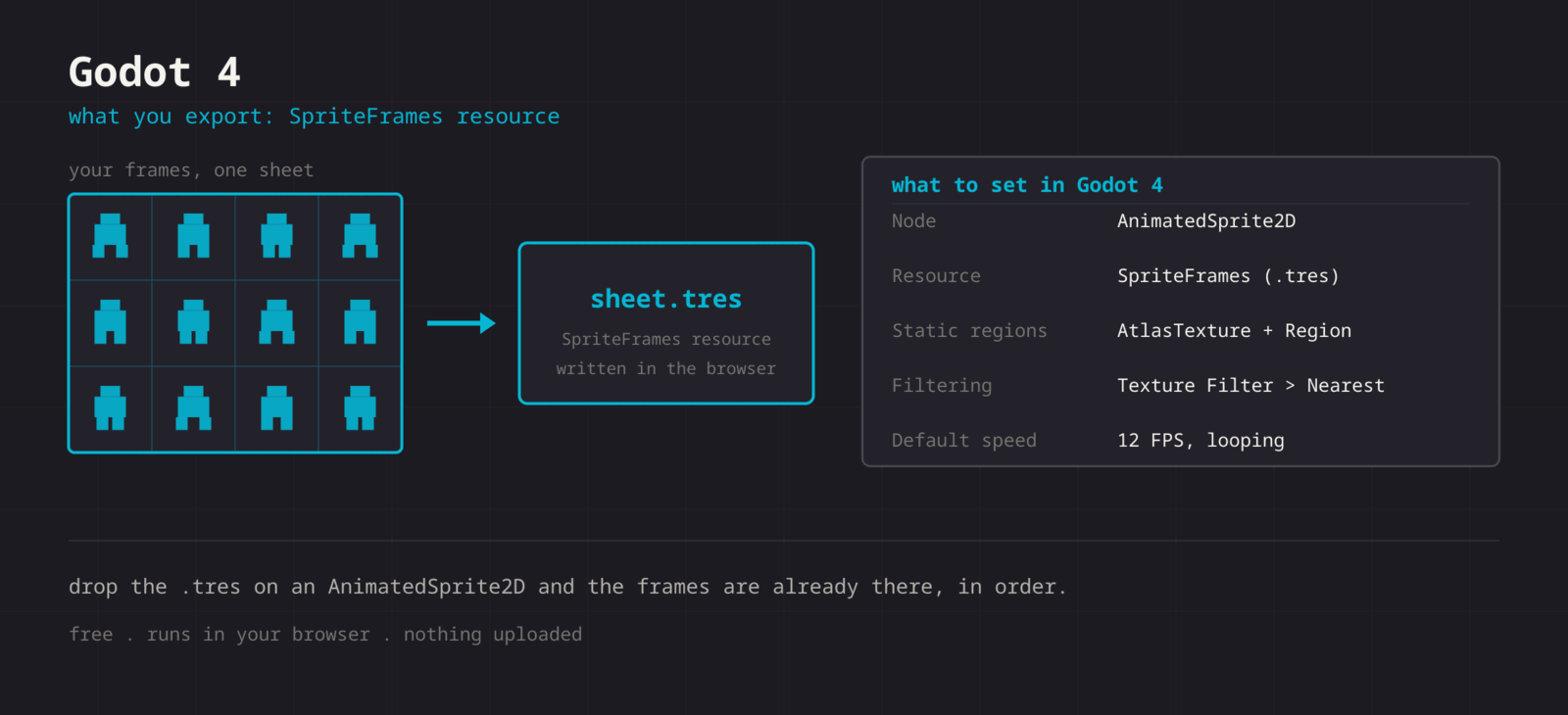
**The Godot export is a SpriteFrames resource with one AtlasTexture per frame. Assign it to an AnimatedSprite2D and skip the Add Frames from Sprite Sheet dialog.**
What you export
**Format menu**
**Godot**
SpriteFrames resource (.tres)
**Format > Godot downloads a ZIP with spritesheet.png and spritesheet.tres. The .tres is a format 3 (Godot 4) SpriteFrames resource: one AtlasTexture sub-resource per frame with its Rect2 region, inside a single looping animation named default at 12 FPS. It points at the image as res://spritesheet.png, the project root. Put the PNG there, or move it and edit that one path line in the .tres.**
Step by step
## **Getting the sheet into Godot**
1. **1**### **Export the ZIP**
In the Export panel, click Format and choose Godot. Unzip spritesheet-godot.zip.
2. **2**### **Place the files**
Copy spritesheet.png into the project root, where res://spritesheet.png points, and the .tres wherever you like. To keep the PNG in a subfolder, open the .tres in a text editor and change the path in the ext\_resource line.
3. **3**### **Assign the resource**
Add an AnimatedSprite2D node and drag the .tres into its Sprite Frames property. The frames are already cut and in order.
4. **4**### **Turn off filtering**
Project Settings > Rendering > Textures > Canvas Textures > Default Texture Filter > Nearest. It applies to the whole project.
5. **5**### **Play it**
Call play("default") from a script, or select the default animation in the SpriteFrames panel and click Autoplay on Load.
GDScript
```
@onready var sprite: AnimatedSprite2D = $AnimatedSprite2D
func _ready() -> void:
sprite.play("default")
func set_sprinting(on: bool) -> void:
# The export holds one animation, "default". Speed it up instead of swapping.
sprite.speed_scale = 1.5 if on else 1.0
```
Cheat sheet
| **Setting** | **Godot value** |
| --- | --- |
| **Assign to** | AnimatedSprite2D > Sprite Frames |
| **Resource** | SpriteFrames (.tres), format 3 |
| **Texture path** | res://spritesheet.png (project root) |
| **Filtering** | Default Texture Filter > Nearest |
| **Default animation** | default, 12 FPS, looping |
Built for the workflow
### **A real .tres**
Not a JSON file you have to convert. Godot 4 opens the SpriteFrames resource directly, with one AtlasTexture per frame.
### **Exact region rects**
Each frame carries its own Rect2, so you never retype rows and columns into the SpriteFrames dialog.
### **Plain text**
The texture path, speed, and loop flag are single lines in the file. Change them in any text editor, or in the SpriteFrames panel.
Troubleshooting
## **When the sheet fights Godot**
### **The node shows the whole sheet as a single frame**
- **Cause**
- The PNG went onto a Sprite2D texture instead of the .tres going onto the Sprite Frames property of an AnimatedSprite2D.
- **Fix**
- **Use an AnimatedSprite2D and drag the .tres onto Sprite Frames. The regions live in the resource; the PNG on its own has no frame information.**
### **Godot reports a missing dependency when opening the .tres**
- **Cause**
- The ext_resource line reads res://spritesheet.png, and the PNG is in a subfolder or was renamed.
- **Fix**
- **Move the PNG to the project root, or edit the path string in the .tres to where the image lives. Godot also offers a Fix Dependencies dialog that lets you point it at the file.**
### **The animation runs at the wrong speed**
- **Cause**
- The export always writes 12 FPS, which is a starting point rather than your timing.
- **Fix**
- **Change the speed in the SpriteFrames panel for a permanent value, or set speed_scale on the node at runtime when the same animation should run faster.**
### **A thin line of the next frame shows along a sprite edge**
- **Cause**
- Cells in this export touch, so linear filtering or a scaled sprite samples half a pixel into the neighbouring frame.
- **Fix**
- **Set Default Texture Filter to Nearest. If the sprite is scaled or rotated, re-export with Padding set to 1 so every frame has a transparent border inside its cell.**
### **Pixel art shimmers as the camera moves**
- **Cause**
- The camera sits at a fractional position, so sprites are drawn on a different sub-pixel offset each frame.
- **Fix**
- **Enable Snap 2D Transforms To Pixel and Snap 2D Vertices To Pixel under Project Settings > Rendering > 2D. No re-export needed.**
### **The sprite is offset from its collision shape**
- **Cause**
- AnimatedSprite2D is centred by default, and art that does not fill its cell sits away from the node origin.
- **Fix**
- **Align the art the same way in every cell, then set Offset on the node once rather than moving the CollisionShape2D per animation.**
### **A blank frame flashes in the loop**
- **Cause**
- Every frame in the editor becomes a frame in the resource, including blank frames you inserted.
- **Fix**
- **Delete the blank frame in the editor before exporting. Removing it in the SpriteFrames panel also works, but the next export brings it back.**
Versions and edge cases
## **Versions and edge cases**
- **Godot 4.x**
- The resource is written in format 3 and opens in every 4.x release. AnimatedSprite2D, AtlasTexture regions, and the SpriteFrames panel have kept the same shape across the 4 series.
- **Static sprites and UI**
- For one frame rather than an animation, create an AtlasTexture with the PNG as its atlas and set the region to the cell. TextureRect and TextureButton both accept an AtlasTexture, so the sheet can double as an icon set.
- **TileMaps**
- A TileSet is a different resource. Build it in the TileSet editor from the PNG with Texture Region Size set to the cell size and Separation at 0. Godot has no built-in Tiled importer, so the .tsj export needs a community plugin there.
Godot FAQ
###
###
###
**More detail in the **[**related guide**](https://spritesheetgenerator.online/guides/import-sprite-sheets-game-engines)**, or compare **[**every export format**](https://spritesheetgenerator.online/features/export-formats)**. **
Other engines
[**Unity**](https://spritesheetgenerator.online/engines/unity "Export a PNG grid with a .meta file that imports it already sliced.") [** Phaser**](https://spritesheetgenerator.online/engines/phaser "Export a TexturePacker-format JSON atlas and load it with this.load.atlas.") [** PixiJS**](https://spritesheetgenerator.online/engines/pixijs "The same JSON atlas, parsed by Assets.load into a Spritesheet.") [** GameMaker**](https://spritesheetgenerator.online/engines/gamemaker "Export a uniform PNG and split it with Convert to Frames.") [** Construct 3**](https://spritesheetgenerator.online/engines/construct "Export a uniform PNG and import it with Import frames > From sprite strip.") [** Defold**](https://spritesheetgenerator.online/engines/defold "Export a PNG with a Tile Source whose size and animation are already set.") [** Tiled**](https://spritesheetgenerator.online/engines/tiled "Export a .tsj tileset with columns, tile size, and count filled in.") [** FNF & Sparrow**](https://spritesheetgenerator.online/engines/fnf "Sparrow XML atlas for FNF mods, Starling, and HaxeFlixel.")
## **Export for Godot**
**Load your frames, check the loop in the Preview tab, then export. For Godot that means: SpriteFrames resource (.tres).**
[Open the editor](https://spritesheetgenerator.online/editor) [**All engines**](https://spritesheetgenerator.online/engines)
```json
{"@context":"https://schema.org","@graph":[{"@id":"https://spritesheetgenerator.online/#website","@type":"WebSite","description":"Free online tool to create spritesheets for game development. Upload sprites, arrange them, and export as a spritesheet with animation preview.","name":"Spritesheet Generator","url":"https://spritesheetgenerator.online/","publisher":{"@id":"https://spritesheetgenerator.online/#identity"}},{"@id":"https://spritesheetgenerator.online/engines/godot#webpage","@type":"WebPage","description":"Export a Godot 4 SpriteFrames .tres with every frame region filled in. Assign it to an AnimatedSprite2D, keep the res:// path valid, and set Nearest filtering.","name":"Godot 4 Sprite Sheets with SpriteFrames .tres Export","url":"https://spritesheetgenerator.online/engines/godot","breadcrumb":{"@id":"https://spritesheetgenerator.online/engines/godot#breadcrumb"},"isPartOf":{"@id":"https://spritesheetgenerator.online/#website"},"potentialAction":[{"@type":"ReadAction","target":["https://spritesheetgenerator.online/engines/godot"]}],"primaryImageOfPage":{"@id":"https://spritesheetgenerator.online/#logo"}},{"@id":"https://spritesheetgenerator.online/#identity","@type":"Organization","description":"A free, browser based sprite sheet generator for 2D game developers and pixel artists.","name":"Spritesheet Generator","url":"https://spritesheetgenerator.online","logo":{"@id":"https://spritesheetgenerator.online/#logo"},"sameAs":["https://discord.gg/2vvfqwn5k7"]},{"@id":"https://spritesheetgenerator.online/engines/godot#breadcrumb","@type":"BreadcrumbList","itemListElement":[{"@type":"ListItem","name":"Home","item":"https://spritesheetgenerator.online","position":1},{"@type":"ListItem","name":"Engines","item":"https://spritesheetgenerator.online/engines","position":2},{"@type":"ListItem","name":"Godot","item":"https://spritesheetgenerator.online/engines/godot","position":3}]},{"@id":"https://spritesheetgenerator.online/engines/godot#/schema/question/1","@type":"Question","inLanguage":"en","name":"Does the .tres work in Godot 3?","acceptedAnswer":{"@type":"Answer","text":"No. The resource is written in format 3, which only Godot 4 reads. On Godot 3, export the PNG and use Add Frames from Sprite Sheet in the SpriteFrames panel, entering your column and row counts."}},{"@id":"https://spritesheetgenerator.online/engines/godot#/schema/question/2","@type":"Question","inLanguage":"en","name":"How do I get several animations into one SpriteFrames?","acceptedAnswer":{"@type":"Answer","text":"Export one sheet per action. Open the first .tres in the SpriteFrames panel, add a new animation, and fill it with Add Frames from Sprite Sheet using the second PNG and its column and row counts. Rename default to something like idle while you are there."}},{"@id":"https://spritesheetgenerator.online/engines/godot#/schema/question/3","@type":"Question","inLanguage":"en","name":"Can I use it from C#?","acceptedAnswer":{"@type":"Answer","text":"Yes. The resource is engine data, not GDScript, so C# sees the same node: GetNode\u003CAnimatedSprite2D>(\"AnimatedSprite2D\").Play(\"default\")."}},{"@id":"https://spritesheetgenerator.online/#logo","@type":"ImageObject","caption":"Spritesheet Generator","contentUrl":"https://spritesheetgenerator.online/web-app-manifest-512x512.png","inLanguage":"en","url":"https://spritesheetgenerator.online/web-app-manifest-512x512.png"}]}
```
## Sitemap
See the full [sitemap](https://spritesheetgenerator.online/sitemap.md) for all pages.