---
title: "Unity Sprite Sheets: Export a PNG Grid with Slices"
description: "Export a PNG grid plus a Unity .meta file with every sprite rect, so the sheet imports pre-sliced. Filter, compression, pivot, and Animation Clip timing."
canonical_url: "https://spritesheetgenerator.online/engines/unity"
meta:
author: "Dennis Postma"
"og:description": "Export a PNG grid plus a Unity .meta file with every sprite rect, so the sheet imports pre-sliced. Filter, compression, pivot, and Animation Clip timing."
"og:image": "https://spritesheetgenerator.online/og-image.png"
"og:image:alt": "Spritesheet Generator editor showing sprites arranged on a sheet grid"
"og:title": "Unity Sprite Sheets: Export a PNG Grid with Slices"
"twitter:image": "https://spritesheetgenerator.online/og-image.png"
"twitter:image:alt": "Spritesheet Generator editor showing sprites arranged on a sheet grid"
---
> Index of every page on this site: [llms.txt](https://spritesheetgenerator.online/llms.txt)
UnityMetadata export
# **Sprite Sheet Generator for Unity**
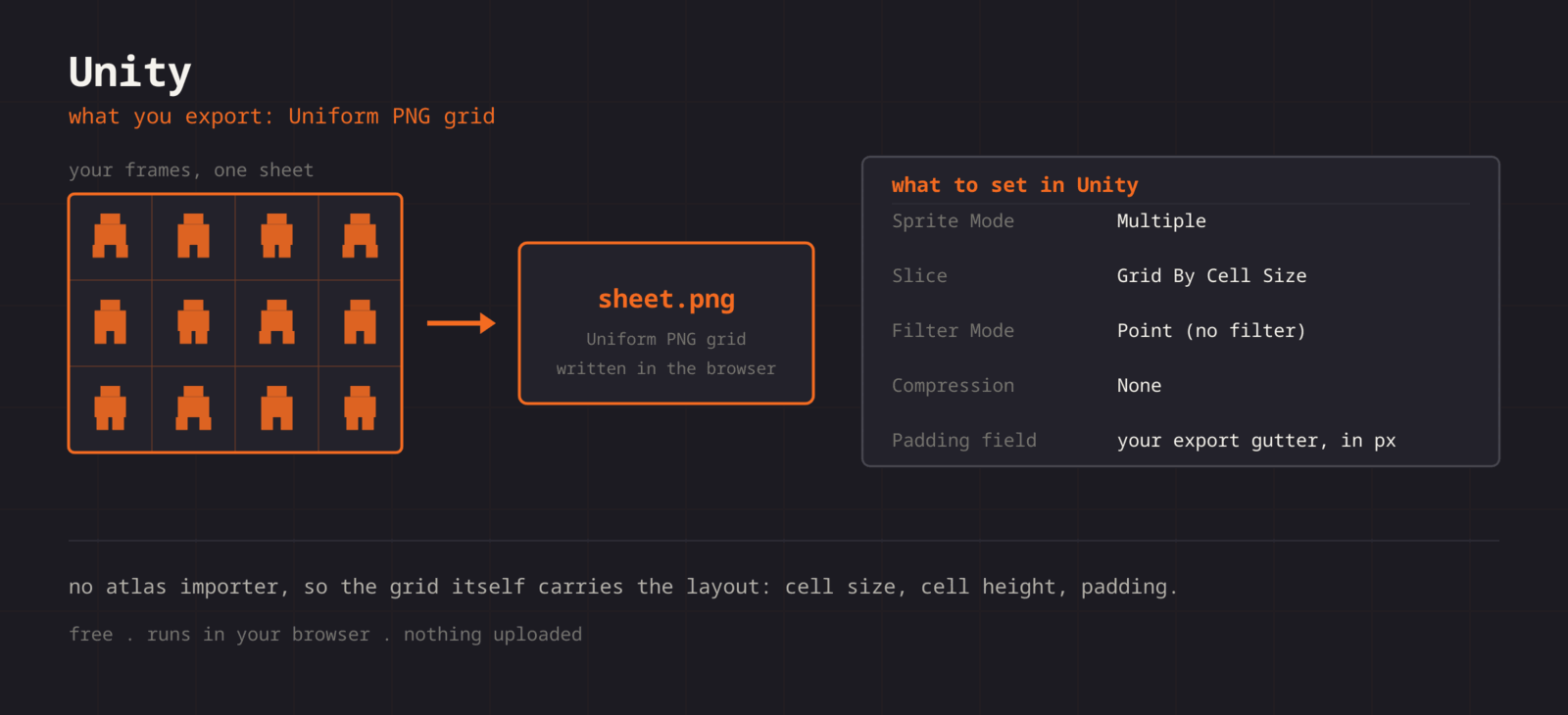
**The Unity preset writes spritesheet.png and spritesheet.png.meta. Drop both into Assets and the Sprite Editor has every frame cut at the cell size from the Grid Layout panel. No importer package required.**
What you export
**Format menu**
**Unity**
PNG grid plus a TextureImporter .meta
**Format > Unity downloads spritesheet.png and spritesheet.png.meta. The .meta is the file Unity writes for its own TextureImporter: Sprite Mode set to Multiple, Point filtering, no compression, and one named rect per frame with the y axis flipped to Unity's bottom-left origin. Put both files in the same Assets folder and Unity reads the slices on import. The cell size is the one shown under Grid Layout, so editor Padding is already inside each rect. If you rename the PNG, rename the .meta to match.**
Step by step
## **Getting the sheet into Unity**
1. **1**### **Export the pair**
Click Format in the Export panel and choose Unity. The ZIP holds spritesheet.png and spritesheet.png.meta.
2. **2**### **Drop both into Assets**
Keep the names together. Unity imports the PNG with the settings in the .meta; if you rename the PNG, rename the .meta the same way.
3. **3**### **Check the slices**
Select the PNG and open the Sprite Editor. Sprite Mode is Multiple and the frames are listed as frame\_000 upward. Adjust a pivot here if your art needs one.
4. **4**### **Confirm the texture settings**
The .meta sets Filter Mode to Point and Compression to None. Check the Inspector if the project overrides texture settings; bilinear filtering blurs pixel art.
5. **5**### **Make the animation**
Select the sliced sprites in the Project window and drag them into the Scene together. Unity creates an Animation Clip and an Animator Controller for them.
Cheat sheet
| **Setting** | **Unity value** |
| --- | --- |
| **Import** | PNG and .meta into the same Assets folder |
| **Sprite Mode** | Multiple, set by the .meta |
| **Slices** | frame\_000 upward, one rect per cell |
| **Filter Mode** | Point (no filter), set by the .meta |
| **Compression** | None, set by the .meta |
| **Pivot** | Center by default; change it in the Sprite Editor |
Built for the workflow
### **Native import settings**
The .meta is Unity's own TextureImporter file, not a third-party atlas or a plugin. Unity reads it the same way it reads a .meta it wrote itself.
### **Exact rects**
Every frame carries its own rect. The y values are measured from the bottom-left, because that is where Unity starts its texture coordinates.
### **Single frames if you prefer**
The ZIP export writes every frame as its own PNG (frames/frame\_001.png and up). Import those with Sprite Mode set to Single if you would rather not slice at all.
Troubleshooting
## **When the sheet fights Unity**
### **Every frame after the first is shifted right**
- **Cause**
- Unity is using its own .meta, or a Slice dialog was run with Offset or Padding set. The cells in this export have no gap between them, so extra padding grows the error across the row.
- **Fix**
- **Replace the .meta with the one from the Unity export, or delete the old .meta and copy the pair in again. If you sliced by hand, set Offset X, Offset Y, and Padding to 0.**
### **Sliced sprites are cropped or carry a strip of the next frame**
- **Cause**
- The .meta is missing or renamed, so Unity imports the PNG with its own defaults instead of the exported rects.
- **Fix**
- **Keep spritesheet.png.meta next to spritesheet.png and reimport. As a check, the sheet width divided by Columns should equal the cell width shown under Grid Layout.**
### **The generated animation plays at the wrong speed**
- **Cause**
- The clip runs at its own sample rate, not at the rate you previewed.
- **Fix**
- **Open the Animation window, turn on Show Sample Rate from its options menu (recent versions hide the field), and set Samples to your target, for example 12.**
### **Sprite edges flicker or bleed while the camera moves**
- **Cause**
- Mip maps are on, or the sprite is drawn at a fractional pixel position, so the sampler reaches into the neighbouring cell.
- **Fix**
- **Turn off Generate Mip Maps in the texture importer, set Mesh Type to Full Rect, and add a Pixel Perfect Camera so sprites land on whole pixels. One pixel of editor Padding also gives each frame a transparent border to absorb the error.**
### **The character sinks into the floor or rotates around its stomach**
- **Cause**
- Every sliced sprite uses a Center pivot, and a character usually stands on its feet.
- **Fix**
- **Select the slices in the Sprite Editor and set Pivot to Bottom, or set it per sprite with Custom. Unpack the prefab if you need to change it after the sprites are in the Scene.**
### **The imported texture looks lower resolution than the file**
- **Cause**
- A platform override is capping Max Size below the sheet dimensions, so Unity scales the texture down on import.
- **Fix**
- **Raise Max Size to at least the largest sheet dimension in the Inspector or the platform override, and keep Compression at None. Very large sheets are easier to manage split into one sheet per animation.**
Versions and edge cases
## **Versions and edge cases**
- **2D Sprite package**
- The Sprite Editor ships in the 2D Sprite package. Projects started from a 3D template may not have it, and the Sprite Editor button then does not appear. Add 2D Sprite in the Package Manager first.
- **Universal Render Pipeline**
- URP changes materials, not sprite import. Filter Mode, Compression, and slicing work the same way. For crisp scaling, use the Pixel Perfect Camera component rather than changing the sheet.
- **Unity Sprite Atlas**
- Unity can repack sliced sprites into a Sprite Atlas asset for batching. That happens at build time on top of the sheet, so keep this PNG as the source art and let Unity repack it.
Unity FAQ
###
###
###
**More detail in the **[**related guide**](https://spritesheetgenerator.online/guides/import-sprite-sheets-game-engines)**, or compare **[**every export format**](https://spritesheetgenerator.online/features/export-formats)**. **
Other engines
[**Godot**](https://spritesheetgenerator.online/engines/godot "Export a SpriteFrames .tres and assign it to an AnimatedSprite2D.") [** Phaser**](https://spritesheetgenerator.online/engines/phaser "Export a TexturePacker-format JSON atlas and load it with this.load.atlas.") [** PixiJS**](https://spritesheetgenerator.online/engines/pixijs "The same JSON atlas, parsed by Assets.load into a Spritesheet.") [** GameMaker**](https://spritesheetgenerator.online/engines/gamemaker "Export a uniform PNG and split it with Convert to Frames.") [** Construct 3**](https://spritesheetgenerator.online/engines/construct "Export a uniform PNG and import it with Import frames > From sprite strip.") [** Defold**](https://spritesheetgenerator.online/engines/defold "Export a PNG with a Tile Source whose size and animation are already set.") [** Tiled**](https://spritesheetgenerator.online/engines/tiled "Export a .tsj tileset with columns, tile size, and count filled in.") [** FNF & Sparrow**](https://spritesheetgenerator.online/engines/fnf "Sparrow XML atlas for FNF mods, Starling, and HaxeFlixel.")
## **Export for Unity**
**Load your frames, check the loop in the Preview tab, then export. For Unity that means: PNG grid plus a TextureImporter .meta.**
[Open the editor](https://spritesheetgenerator.online/editor) [**All engines**](https://spritesheetgenerator.online/engines)
```json
{"@context":"https://schema.org","@graph":[{"@id":"https://spritesheetgenerator.online/#website","@type":"WebSite","description":"Free online tool to create spritesheets for game development. Upload sprites, arrange them, and export as a spritesheet with animation preview.","name":"Spritesheet Generator","url":"https://spritesheetgenerator.online/","publisher":{"@id":"https://spritesheetgenerator.online/#identity"}},{"@id":"https://spritesheetgenerator.online/engines/unity#webpage","@type":"WebPage","description":"Export a PNG grid plus a Unity .meta file with every sprite rect, so the sheet imports pre-sliced. Filter, compression, pivot, and Animation Clip timing.","name":"Unity Sprite Sheets: Export a PNG Grid with Slices","url":"https://spritesheetgenerator.online/engines/unity","breadcrumb":{"@id":"https://spritesheetgenerator.online/engines/unity#breadcrumb"},"isPartOf":{"@id":"https://spritesheetgenerator.online/#website"},"potentialAction":[{"@type":"ReadAction","target":["https://spritesheetgenerator.online/engines/unity"]}],"primaryImageOfPage":{"@id":"https://spritesheetgenerator.online/#logo"}},{"@id":"https://spritesheetgenerator.online/#identity","@type":"Organization","description":"A free, browser based sprite sheet generator for 2D game developers and pixel artists.","name":"Spritesheet Generator","url":"https://spritesheetgenerator.online","logo":{"@id":"https://spritesheetgenerator.online/#logo"},"sameAs":["https://discord.gg/2vvfqwn5k7"]},{"@id":"https://spritesheetgenerator.online/engines/unity#breadcrumb","@type":"BreadcrumbList","itemListElement":[{"@type":"ListItem","name":"Home","item":"https://spritesheetgenerator.online","position":1},{"@type":"ListItem","name":"Engines","item":"https://spritesheetgenerator.online/engines","position":2},{"@type":"ListItem","name":"Unity","item":"https://spritesheetgenerator.online/engines/unity","position":3}]},{"@id":"https://spritesheetgenerator.online/engines/unity#/schema/question/1","@type":"Question","inLanguage":"en","name":"Can Unity import a JSON atlas?","acceptedAnswer":{"@type":"Answer","text":"Not out of the box. Unity wants its own import settings, so the Unity export writes a .meta instead of a TexturePacker JSON. That is still no plugin: the .meta is the same file Unity creates when you configure a texture by hand."}},{"@id":"https://spritesheetgenerator.online/engines/unity#/schema/question/2","@type":"Question","inLanguage":"en","name":"What if Unity already imported the PNG?","acceptedAnswer":{"@type":"Answer","text":"Unity creates its own .meta on first import. Replace that file with the exported .meta, or delete the old one and copy the pair in again, then right-click the PNG and choose Reimport. The slices come from the .meta, not from the image."}},{"@id":"https://spritesheetgenerator.online/engines/unity#/schema/question/3","@type":"Question","inLanguage":"en","name":"Does the PNG carry the frame rate?","acceptedAnswer":{"@type":"Answer","text":"No, an image has no timing. Settle on a rate in the Preview tab here, then set the same value as the Samples of the Animation Clip Unity creates."}},{"@id":"https://spritesheetgenerator.online/#logo","@type":"ImageObject","caption":"Spritesheet Generator","contentUrl":"https://spritesheetgenerator.online/web-app-manifest-512x512.png","inLanguage":"en","url":"https://spritesheetgenerator.online/web-app-manifest-512x512.png"}]}
```
## Sitemap
See the full [sitemap](https://spritesheetgenerator.online/sitemap.md) for all pages.