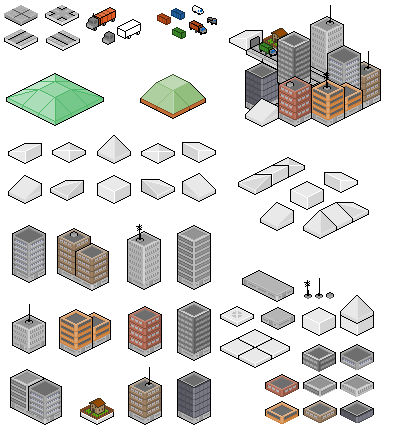
You rarely want true real-time lighting in pixel art; it fights the hand-placed pixels. Instead, fake it: bake shading into the sprite, use a tight light-to-shadow palette ramp, add a soft drop shadow for grounding, and reach for normal maps only when you need dynamic lights. Cheap tricks read better than expensive ones here.
Lighting is what makes a flat 2D scene feel like it has volume and air. But pixel art is a hand-placed medium, and dropping a real-time light engine on top of it usually makes it look worse: it blurs the deliberate pixels, washes out the palette, and adds soft edges where the artist wanted hard ones.
So most good-looking pixel art games do not light their scenes. They fake it, and the fakes are cheaper, more controllable, and more in keeping with the style.

Light Lives in the Palette
Before any engine feature, lighting in pixel art is a palette decision. Every shaded sprite is built on a ramp: a sequence of colors from the lit highlight down through the midtone to the core shadow. The artist decides where the light comes from and places those ramp colors by hand.
A good ramp is not just one color getting darker. As a surface falls into shadow it usually shifts in hue too, often toward a cool blue or purple, because ambient light fills shadows with sky color. Pure black shadows look dead. This hue shift is the single biggest upgrade most beginners can make.
| Ramp choice | Result |
|---|---|
| One color, darker steps | Flat, plasticky, lifeless shadows |
| Darker plus a hue shift to cool | Natural, has air and depth |
| Warm highlight, cool shadow | Strong sense of a real light source |
| Too many steps | Muddy, loses the crisp pixel look |
Keep the ramp short. Three to five steps per material is usually plenty. You can test ramps fast without redrawing using the recolor tool, and the palette swap guide covers building ramps that hold up across a character.
Baked Shading: The Default Choice
For most 2D games, the right answer is to bake the lighting straight into the sprite. The artist shades each sprite as if lit from a fixed direction (commonly top-left), and that shading ships in the sprite sheet. No runtime cost, full artistic control, and the pixels stay exactly where they were placed.
The catch: the light direction is fixed. If your game needs lights that move (a torch the player carries, a day-night cycle), baked shading alone will not follow them. For a huge range of games (platformers, top-down adventures, most RPGs) that is completely fine, and it is what the classics did.

Grounding Shadows: The Cheapest Win
A sprite with no shadow looks like it is floating. The fix is almost free: a simple shadow on the ground beneath it.
- Blob shadow. A soft dark ellipse under the character. Cheap, works everywhere, scales with jump height to sell elevation.
- Skewed sprite shadow. A darkened, flattened copy of the sprite projected on the ground. More convincing, slightly more work.
- Contact shadow. A small dark band right where the object meets the floor. Subtle, grounds objects without a full cast shadow.
Shrink and lighten the blob shadow as the character jumps, and the eye instantly reads height. It is one of the highest-payoff tricks in 2D game feel for almost no cost.
When You Actually Need Dynamic Light
Sometimes the game design demands real moving lights: a dark cave lit only by the player's lantern, a horror game built on shadows, a neon city at night. For those, you have real options.
| Technique | Cost | Look | Use when |
|---|---|---|---|
| Baked shading only | Free | Clean, fixed | Most games |
| Blob / cast shadows | Very low | Grounded | Almost always, on top of baked |
| Light mask overlay | Low | Soft pools of light | Caves, night scenes, fog of war |
| Normal maps | Medium | Surfaces react to moving lights | Dynamic lights are core to the game |
A light mask is the cheap middle ground: a dark overlay across the scene with soft holes punched where lights are. It does not relight the sprites, but it controls visibility and mood beautifully, which is most of what a torch needs to do.
Normal maps are the heavy option. You author a second image per sprite that encodes which way each pixel's surface faces, and the engine uses it to make moving lights play across the sprite realistically. It looks great and it is a lot of extra work per asset, so only commit to it if dynamic lighting is central to the game.
Order of operations: get the baked palette ramp right first, add grounding shadows second, and only reach for light masks or normal maps if the design genuinely needs lights to move. Most games never get past step two, and they look great.
A Practical Approach
- Pick one light direction and commit the whole game to it.
- Build short color ramps with a cool hue shift in the shadows.
- Bake the shading into every sprite.
- Add a blob or contact shadow to anything that sits on the ground.
- If, and only if, the design needs moving light, layer a light mask over the scene.
- Save normal maps for the rare game built around dynamic lighting.
You can build and shade sprites, then preview how the ramp reads in motion, in the editor and animation preview. If you are sourcing pre-shaded art instead of drawing it, check the free assets guide for packs that already include clean shading.
Shade your sprites and see them move.
Build the sheet, test your palette ramp, and preview the animation in one browser editor.
The Short Version
Real-time lighting fights pixel art more than it helps. Fake it: bake the shading with a short, hue-shifted ramp, ground every object with a cheap shadow, and only add light masks or normal maps when the design truly needs moving lights. The palette does most of the work, and that is exactly how pixel art is supposed to look. For the color side, see the palette swap guide.