Animation Preview
Play the sheet back before you export it. Set the FPS, step frame by frame, and find the pose that reads wrong.
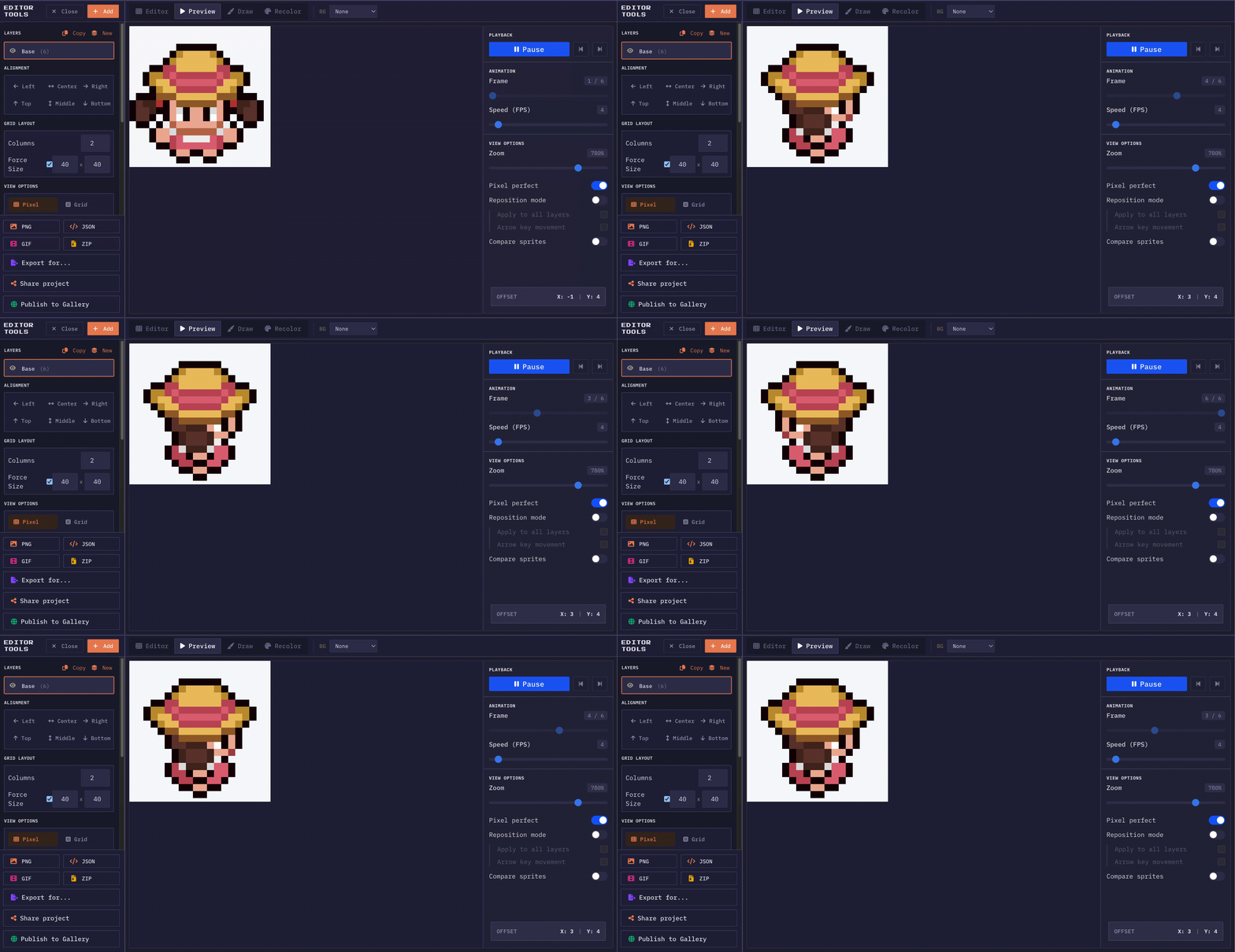
Catch it here, not in the engine
The sprite sheet preview plays your frames back at whatever FPS you set. Loop it, or step one frame at a time when something looks off. Frames you hide stay in the sheet but drop out of playback, which is the fastest way to test a shorter cycle without deleting anything. Recolor edits show up in the running loop too, so a palette swap gets judged in motion instead of on one still frame.
Playback
Loop it, or play it once and stop. Either way the sprite animation runs at the speed you set.
Adjustable FPS
1 to 60 frames per second. Most pixel art sits between 8 and 12. Drag the slider until the walk stops looking like a shuffle.
Frame scrubbing
Step one frame at a time. This is how you find the duplicate, the gap, and the frame that is two pixels off.
Hidden frames
Toggle a frame off and it stays in the sheet but skips the loop. Good for testing a four frame cycle cut out of an eight frame one.
GIF export
Happy with the loop? Export it as an animated GIF at the FPS you previewed it at.
Live recolor preview
Hue and saturation edits land in the running loop. A palette swap reads differently in motion than it does on one frame.
A grid of poses tells you nothing about motion
Every frame in a sheet can be individually correct while the animation is broken. Timing, spacing, and frame order are properties of the sequence, not of any single image, so they are invisible in a static layout. The only way to judge them is to watch the frames play.
Doing that inside a game engine means an import, a resource setup, an animation node, and a build, and then a change to one frame means doing it again. Playing the sheet back where you built it collapses that loop to nothing. Change a frame, watch the loop, change it again.
Choosing a frame rate that matches the action
Frame rate is a design choice, not a technical default. Pixel art character animation usually sits between 8 and 12 frames per second, which is slow enough to read as deliberate and fast enough not to strobe. Idle and breathing loops go slower, often 4 to 6, because a slow idle makes a character feel calm rather than nervous. Attacks and impacts often want 15 to 24 for the fast part, since a strike that reads as a blur is doing its job.
Match the engine
What matters more than the number is that the preview rate matches what the engine will use. A sheet previewed at 24 and played at 10 in game is a sheet you have not actually seen. Set the slider to the rate the project runs at, and any judgement you make about the loop carries over.
The slider covers 1 to 60, and dragging it while the loop runs is often more informative than picking a value. A walk that looks like a shuffle at 6 and like a jog at 16 has a right answer somewhere in between, and you find it by ear rather than by arithmetic.
The faults a loop shows and a still frame hides
A pop is a single frame that does not belong: one pixel too bright, one limb in the wrong place, and it flashes every cycle. Stepping frame by frame is how you find which one, because at speed you can see the flicker but not the cause.
The faults a still frame hides
- Drift is a character that creeps across the canvas over a loop that should stay put, from each frame being drawn slightly further along than the last.
- Uneven spacing is two frames nearly identical followed by one that jumps, which makes a smooth swing look like it stutters.
- A hard seam is the join between the last frame and the first, and it is the single most common fault in a cycle, because it is the only transition an artist never sees while drawing.
Toggling frames off is the cheap way to test a shorter cycle. Hide the two weakest frames of an eight frame run and you get a six frame version instantly, without deleting anything. Keep it if it reads better, restore the frames if it does not.
What the preview shows is what the export writes
The preview composites every visible layer, exactly as the export does, and it applies the recolor settings live. A palette swap judged on one still frame can be a mistake, because a colour that looks fine in a pose can vibrate in motion, and a value change that flattens a sprite only shows once it is moving.
That equivalence is the useful part. Hidden layers stay hidden, hidden frames stay out of the sequence, the frame rate carries across, and a GIF export at that point is the loop you were just watching rather than an approximation of it. Get the preview right and the export needs no second look.
Uniform timing is a starting point, not a rule
The preview plays every frame for the same duration, which is the right default and not how most good animation is timed. Real motion holds on the extremes and moves fast through the middle. An attack that lingers two frames on the wind up, passes through the strike in one, and holds three on the follow through will read better than the same five frames at even spacing.
You can approximate that here by duplicating the frames that should hold, so a two frame hold is simply the same frame twice. It costs texture space, which is why most engines prefer per frame durations, but it makes the preview honest about the timing you intend.
Hand timing to the engine
Once the shape of the timing is settled, move it into the engine properly: per frame durations in Godot, keyframe timing in Unity, frame rate plus repeats in Phaser. Use the preview to decide what the timing should be, then let the engine hold frames without paying for duplicates.
More questions? See the full FAQ.
Preview your animations
Scrub the loop, dial in the fps, then export once it reads right.
Open the editor