GIF to Sprite Sheet
Turn a GIF into a sprite sheet. Every frame comes out, in order, on a grid your engine can slice.
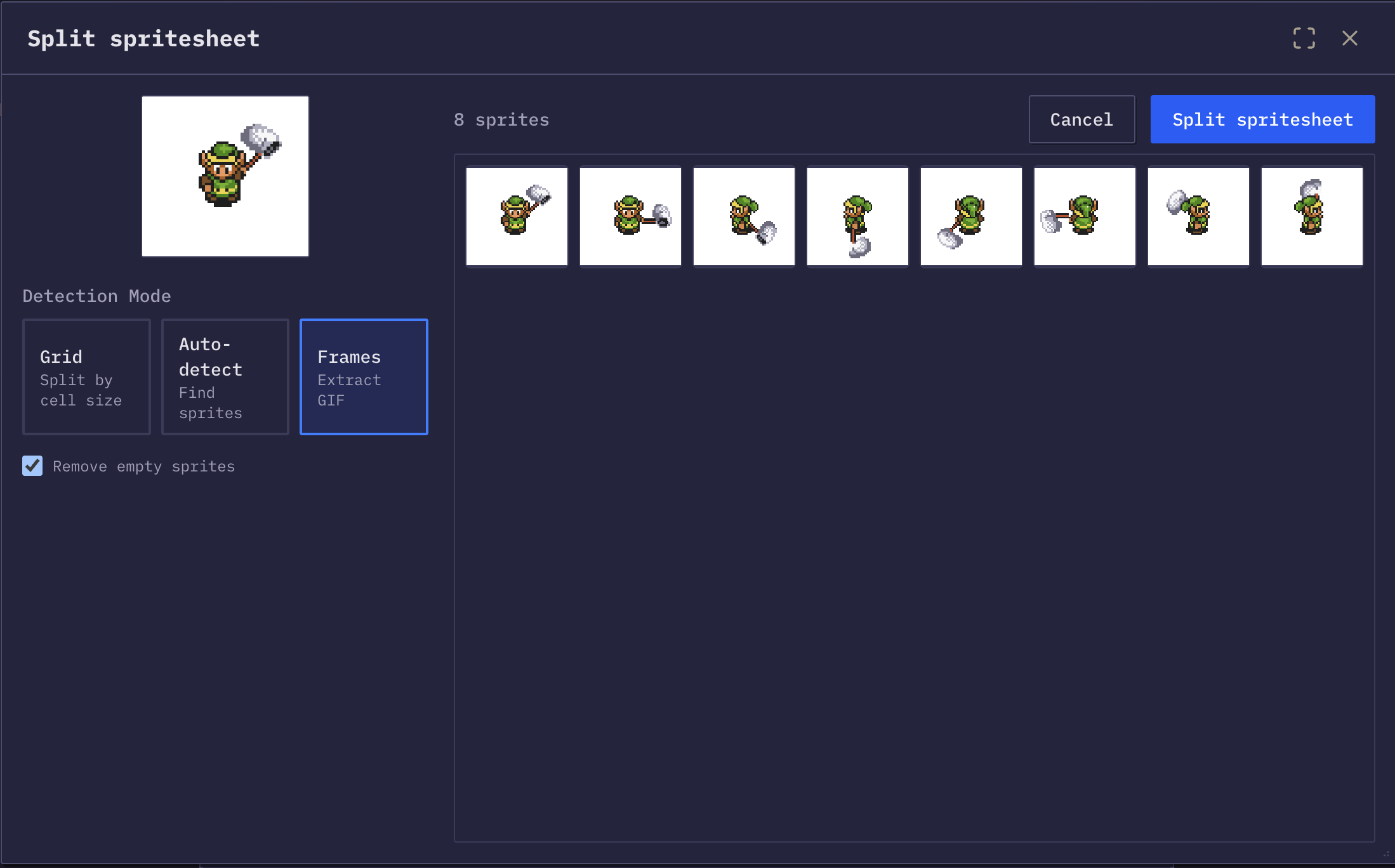
Drop the GIF, get the frames
Drop an animated GIF in and every frame is pulled out as its own sprite. From there they behave like any other frames: drag them into a different order, delete the repeats a GIF uses to fake timing, fix a stray pixel. When the layout looks right, export it as a PNG sprite sheet, a JSON atlas, or whatever else your engine reads. The GIF itself never leaves your machine, because the decoding happens in the tab.
Automatic frame extraction
Every frame comes out as its own sprite the moment the GIF lands. Nothing to slice by hand.
Grid on arrival
Extracted frames drop straight into a grid. Change the column count to match what your engine expects, since engines disagree about how sprite sheets should be laid out.
Remove duplicate frames
GIFs repeat frames to fake timing. Those repeats become dead cells in a sheet, so drop them before you export.
Reorder frames
Drag a frame where you want it. Reverse the whole run, or bounce it ping-pong style if the loop needs it.
Multiple export formats
PNG sheet, JSON atlas, a GIF back out at a different FPS, a ZIP of loose frames, or an engine-specific format.
Nothing uploads
The GIF is decoded in your browser. No server ever sees it, and closing the tab is the only cleanup.
How a GIF stores an animation
A GIF is not a video. It is a stack of images with a delay value attached to each one and a disposal rule saying what to do with the previous image before drawing the next. Many encoders also store only the rectangle that changed, so a single frame inside the file can be a small patch rather than a full picture. Decoding a GIF properly means composing each frame onto the canvas the last one left behind.
That is what happens when you drop a GIF in here. Every frame is composed to full size before it becomes a sprite, so what you get is what you would see at that moment in playback, not a partial patch floating in space.
Why GIFs have frames you do not want
GIF delays are stored in hundredths of a second, and browsers clamp anything under about two hundredths. Encoders work around slow motion by repeating a frame several times instead of setting a long delay. That is invisible in the GIF and a real problem in a sheet, because a repeated frame becomes a duplicate cell that eats texture space and makes the frame count lie.
So the first pass after extraction is a look for repeats. Identical neighbours are safe to delete, and the frame count in the editor drops as you go. Your engine will handle the timing properly through its own animation frame durations, which is where a long pause belongs anyway.
Do not trust GIF order for a loop
Plenty of GIFs bounce back and forth, so the second half is the first half reversed. Half those frames are dead weight in a sheet: delete them and let the animation play forward then backward in engine instead.
What GIF colour limits mean for your sheet
A GIF frame holds at most 256 colours and one of them can be transparent. There is no partial alpha, so any soft edge in the original art has already been either hardened or dithered against a background before the GIF was written. Converting to a sheet recovers the pixels faithfully, but it cannot recover information the GIF never stored.
Practically, this shows up as a fringe of odd pixels around sprites that were once anti-aliased. Pixel art comes through fine, since it had hard edges and a small palette to begin with. For anything else, the pixel editor and the recolor palette list are the tools for cleaning up: find the fringe colour, replace it, or erase it frame by frame.
When this conversion is the right move
The common case is an asset you only have as a GIF. Old sprite rips, a character preview from an asset store, an animation a collaborator sent over chat. Engines will not slice a GIF, so it has to become a sheet before it can become an animation.
The second case is reference. A GIF of a run cycle from a video capture becomes twelve frames you can trace, recolor, or trim down to the four that matter. Extract them, and everything else in the editor treats them as ordinary sprites from that point on.
The third is round tripping. Pull a GIF apart, drop the repeats, fix a pose, then export the whole thing back out as a GIF at a proper frame rate. Nothing about the file leaves your machine on the way through, since the decode and the encode both happen in the page.
Deciding which frames survive the trip
A GIF made for a web page and a sheet made for a game engine want different frame counts. Web GIFs are often generous with frames because bandwidth is the only cost. In a sheet each extra frame is texture memory that stays resident for as long as the sprite exists, so a twenty four frame idle animation is a poor trade when eight of those frames read identically in motion.
The practical pass
- 1Delete exact duplicates.
- 2Delete the reversed half of any ping pong loop.
- 3Watch the animation preview and delete anything you cannot see disappearing.
Most GIFs lose a third of their frames with no visible change to the motion.
Trim the dead margin
Canvas size deserves the same treatment. GIF frames are composed at the full canvas size, which often includes a wide margin of empty space around the subject. Trimming that margin before packing shrinks every cell in the resulting sheet at once, and the trim tool in the pixel editor does it without touching the pixels that matter.
More questions? See the full FAQ.
Convert a GIF to sprite sheet
Drop the GIF in. Every frame comes out, in order, on a grid.
Open the editor