Sprite Sheet to GIF
Turn a sprite sheet into an animated GIF. Set the frame size, pick the FPS, download the loop.
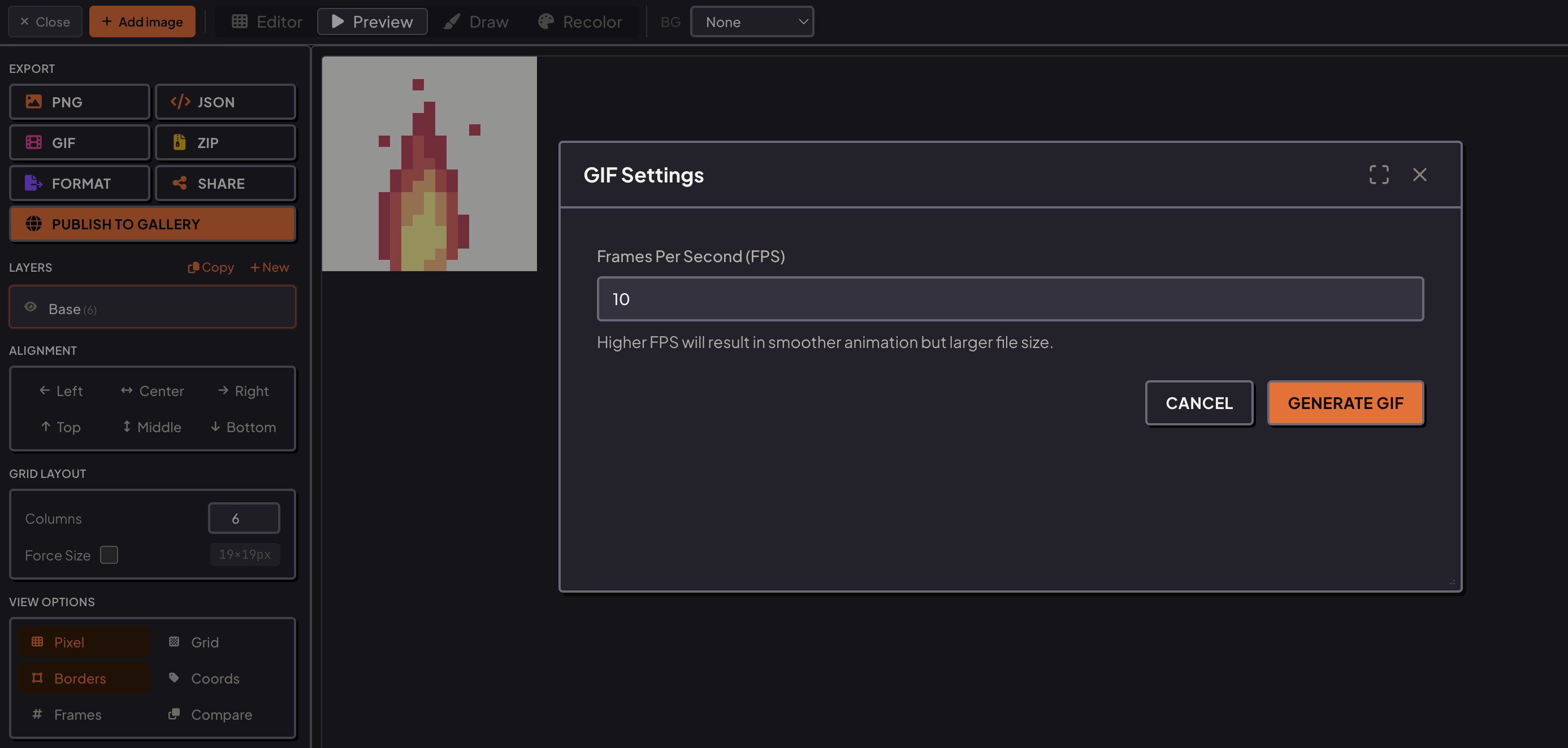
From static sheet to animated GIF
Load a sprite sheet into the editor, get the frames into the order you want, then export the lot as a GIF. The FPS you set is the FPS the file plays at, so match your game and what downloads is what players would see. It does not matter where the sheet came from: one you built here, or one you dropped in from somewhere else.
One-click GIF export
Open the export panel, choose GIF, set the FPS, hit export. Encoding happens in the tab and the file drops into your downloads.
Custom FPS control
Set any frame rate from 1 to 60 FPS. Match the exact playback speed your game engine uses so what you see is what you ship.
Live animation preview
Preview the animated loop directly in the editor before exporting. Scrub frames, adjust timing, and confirm it looks right.
Control frame order
Drag frames to reorder the animation sequence. Reverse, ping-pong, or create sub-animations from a subset of frames.
Works with any sheet layout
Horizontal strip, vertical strip, or grid. Tell it how big one frame is and it works out the rest.
Encoded in the tab
The GIF is built in your browser. No frames are uploaded, so there is nothing to delete off a server afterwards.
A GIF is the format other people can open
A sprite sheet is a working file. Nobody outside your project can look at one and tell whether the animation reads well, because a grid of poses is not motion. A GIF is the opposite: it plays anywhere, in a browser tab, a chat window, a forum post, an issue tracker, a store page, with no player to install and no engine to build.
That makes the conversion less a technical step than a communication one. Devlog updates, playtester feedback, a bug report showing the frame where the sword clips through the shield, a Discord post asking whether the jump has enough anticipation. All of it needs the animation in a form that plays itself.
How frame rate becomes GIF timing
Friendly rates
GIF stores a delay per frame in hundredths of a second, which means the format cannot represent every frame rate exactly. At 12 frames per second each frame wants 8.33 hundredths and gets 8, so the loop runs very slightly fast. At 10 or 20 frames per second the numbers divide cleanly and the timing is exact. If a loop has to match a video or an engine tick precisely, those are the friendly rates.
The other limit is old software, and browsers, that clamp very short delays. Anything above roughly 50 frames per second will not play at the speed you asked for in every viewer. Export at that rate if you want the file to be honest about the source animation, but do not expect the playback to prove anything about how the game feels.
Set the rate to match the game where you can. A GIF exported at the rate the engine actually plays is the only version worth showing a playtester, because it is the only one carrying real timing information.
Transparency and file size
GIF transparency is one flag on one palette entry: a pixel is either fully opaque or fully invisible. Nothing in between survives. Sprites drawn with hard pixel edges export perfectly. Sprites with soft shadows or anti-aliased outlines come out with those edges snapped to hard, which usually looks worse against a page background than it did in the editor.
For those, giving the GIF a solid background that matches where it will be posted often looks better than fighting the alpha. A dark GIF on a dark forum reads cleanly, and nobody sees the join.
Size follows frame count, canvas size, and how much of the picture changes between frames. Fifty frames of a full screen effect makes a heavy file. Trim to the frames that show the point, crop the canvas to the sprite rather than the whole sheet, and the same animation drops to a fraction of the size with nothing lost.
Any sheet layout, not just ones built here
Sheets in the wild come laid out every way there is: a single horizontal strip, a vertical column, a grid four wide, a grid with two pixels of padding between cells. Give the frame dimensions and the layout resolves itself, because rows and columns fall out of the sheet size divided by the cell size.
The one thing worth checking first is whether the sheet has padding. A sheet with a gap between cells sliced as if it had none drifts a little further out of alignment with every cell, and the last frame in the row looks like a different animation. The preview shows that immediately, which is why it is worth playing the loop once before exporting.
Once the frames are correct, the reverse trip is available too. A GIF can go back to being frames, be edited, and come out as a GIF again, all without the file touching a server.
Posting the result where it will be seen
The destination changes what a good export looks like. Chat clients and issue trackers play GIFs inline and usually cap the file at a few megabytes, so fewer frames on a tighter crop beats a full sheet at full canvas. Forum and devlog posts are more forgiving, but a reader on mobile data still appreciates a small file.
Beware transcoding
Store pages and social feeds are the awkward case, because several of them re encode an uploaded GIF into video and quietly ruin sharp pixel edges in the process. If crisp pixels are the point, upload the GIF where GIFs stay GIFs, and treat any platform that transcodes as a place for a screenshot instead.
Say the frame rate
One habit worth keeping: export the GIF at the frame rate the game runs at, then note that rate in the post. It saves the first three replies asking whether the animation is meant to be that fast.
More questions? See the full FAQ.