The best pixel art animations don't run at a fixed frame rate — they use variable frame durations that squeeze extra snap out of every sprite. Combine that with the 60fps divisor rule (10/12/15/20/30 fps), Disney's 12 principles, and a well-packed sprite sheet and your 4-frame walk cycle can outperform a 24-frame one.
The Frame Rate Question Everyone Gets Wrong
Ask ten indie devs what frame rate their pixel art should run at and you'll get ten different answers: 8, 10, 12, 15, 24. Most will hedge with "whatever looks good."
That's not wrong, but it's not useful either. The truth is that frame rate isn't really about frame rate at all — it's about timing. A 4-frame attack animation with thoughtful timing beats a 16-frame attack with uniform timing every single time. The pros don't pick a number and stick with it. They vary durations on purpose, frame by frame.
Here's how to think about it properly.

The 60fps Divisor Rule
Your game probably runs at 60fps. Your animation plays at some lower rate. If those two numbers don't align cleanly, your animation will judder.
Pick an animation FPS that divides evenly into 60. The options are:
- 60 ÷ 1 = 60 fps (one animation frame per render frame — overkill for pixel art)
- 60 ÷ 2 = 30 fps (cinematic, used for high-detail sprites)
- 60 ÷ 3 = 20 fps (crisp, snappy — great for action games)
- 60 ÷ 4 = 15 fps (classic arcade feel)
- 60 ÷ 5 = 12 fps (Disney standard, "animating on twos")
- 60 ÷ 6 = 10 fps (chunky, deliberate — ideal for small sprites)
Pick a non-divisor like 13 or 18 fps and one animation frame occasionally stretches across 5 render frames while the next stretches across 4. Your eye catches the inconsistency as micro-stutter. Not hardware lag — math lag.
The rule of thumb: Small sprites (16×16, 24×24) look best at 8–12 fps. Medium sprites (32×32, 48×48) look best at 12–15 fps. Large sprites (64×64+) can handle 20–30 fps because the extra detail reads at higher frame rates.
Think in Milliseconds, Not Frames
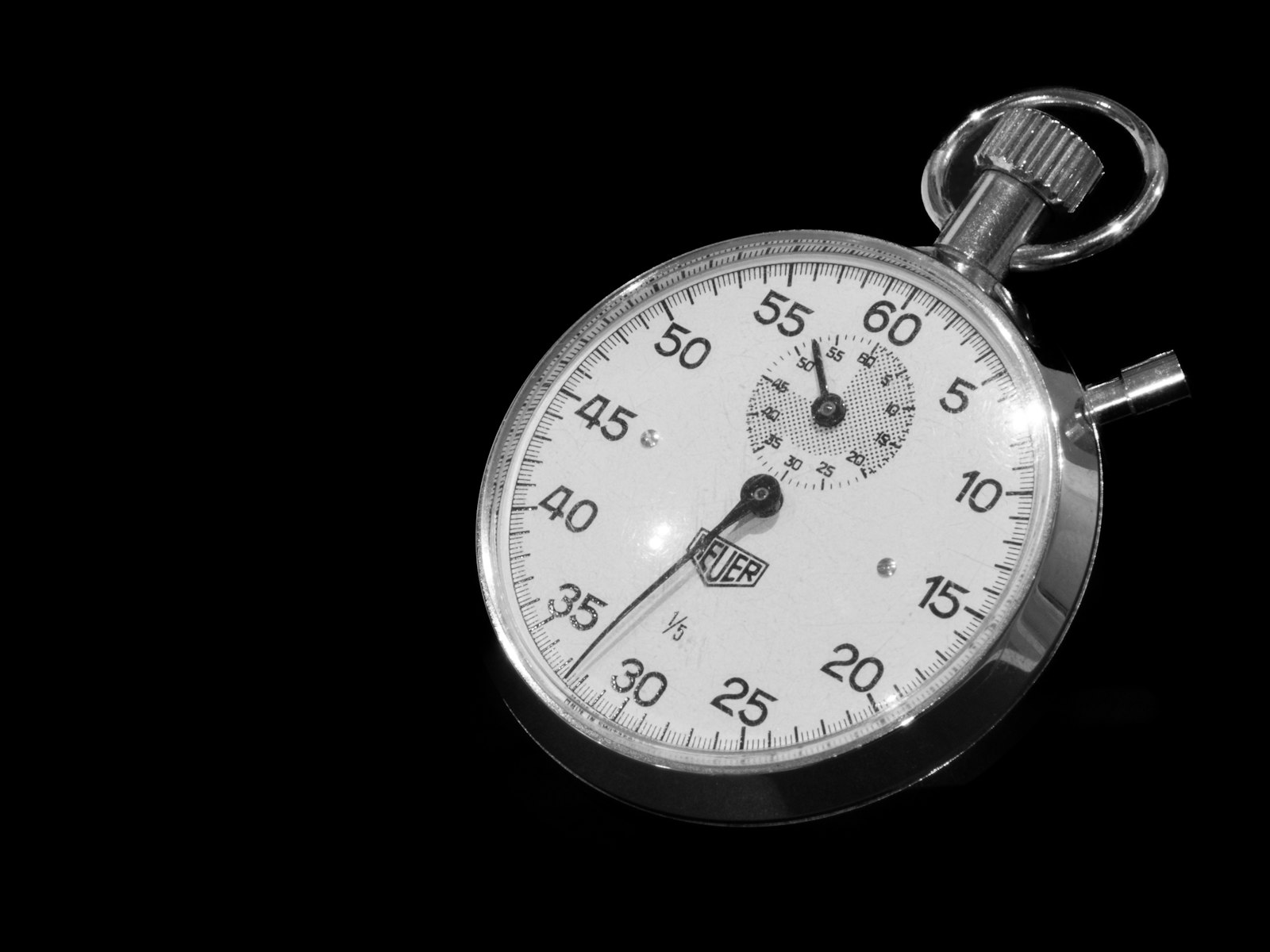
Here's the shift that separates amateur animation from professional work. A seasoned animator doesn't think "this walk cycle is 8 frames at 12 fps." They think:
Frame 1: contact pose — 80ms Frame 2: down pose — 50ms Frame 3: pass pose — 80ms Frame 4: up pose — 50ms
Same four frames, wildly different feel. The contact poses (where the foot hits the ground) get held longer because that's the most "read" pose. The pass poses go quickly because the body is flowing through the motion.
This is called variable frame timing and it's how virtually every great pixel art game handles animation. Attacks get it most dramatically:
- Wind-up frames: held long (100–200ms) to build tension
- Impact frame: held shortest (20–40ms) so the hit feels violent
- Recovery frames: eased back to normal (60–100ms)
Play a frame of Hyper Light Drifter's dash in slow motion and you'll see this pattern. One blurred frame — a single frame — creates the entire feeling of speed. That's not animation, that's editing.
Frame Counts That Actually Work
Let's get specific about how many frames each action needs. After surveying sprite work in dozens of modern indie titles, here's what actually ships:
| Action | Frame Count | Notes |
|---|---|---|
| Idle | 2–4 | Subtle breath or sway. Loop asymmetrically for natural feel. |
| Walk cycle | 4–6 | 4 frames for tiny sprites, 6 for medium. |
| Run cycle | 4–8 | More frames = more visual speed. |
| Jump | 3 poses | Launch → apex → land. Don't animate the arc. |
| Attack (light) | 3–5 | Wind-up → strike → recover. |
| Attack (heavy) | 5–8 | Extra wind-up frames sell the weight. |
| Hit reaction | 2–3 | Must be fast. Longer = character feels sluggish. |
| Death | 6–12 | The one animation where you can go big. |
Celeste's Madeline has a 4-frame run. Shovel Knight's walk is 6 frames. Dead Cells characters have 8–12 frame attack animations — but those sprites are much larger. Match your frame count to your sprite size, not to some arbitrary standard.
The "Animating on Twos" Tradition
Disney's hand-drawn films mostly animate "on twos" — each drawing held for 2 film frames (so 12 unique drawings per second at 24fps). Pixel art inherited this tradition and doubled down on it. Most 2D sprites animate on threes, fours, or even fives. The limitation is the style.
Applying the 12 Principles to Pixel Art
Disney's 12 animation principles — codified by Ollie Johnston and Frank Thomas in The Illusion of Life (1981) — were designed for hand-drawn cartoons. But every one of them translates to pixel art, if you know how to read them.
Squash and Stretch
The principle that gives objects weight and flexibility. In pixel art, squash and stretch usually happens with 1–3 pixel adjustments to the silhouette.
- Character landing from a jump: squash the body vertically by 2 pixels, widen by 1
- Ball bouncing: stretch horizontally when fast, compress vertically on impact
- Attack wind-up: stretch the pose slightly away from the target before snapping forward
The magic rule: volume stays constant. If you squash 2 pixels vertically, add 1 pixel to each side horizontally. Otherwise your character looks like they're shrinking, not compressing.
Anticipation
Before a character jumps, they crouch. Before they attack, they wind up. Before they run, they lean forward. This is anticipation — preparing the viewer's eye for what's coming.
In pixel art, anticipation is often a single held frame. One pose, one extra 80ms beat. That tiny delay is what makes the following action feel earned instead of abrupt.
Staging
In 2D games, staging means making sure the important action reads clearly at the game's actual zoom level. Your animation might look gorgeous at 400% in Aseprite and completely mushy at 1× in-game. Always preview at final resolution.
Straight Ahead vs. Pose-to-Pose
- Straight ahead: draw frame 1, then 2, then 3 in sequence. Feels spontaneous but drifts off model.
- Pose-to-pose: draw the key poses first (contact, apex, contact), then fill the in-betweens. Stays on-model but can feel stiff.
The pro move: pose-to-pose for the key structure, straight-ahead for the polish passes. You get the framework of the first and the life of the second.
Follow Through and Overlapping Action
Different parts of a character don't all stop at the same time. When your hero skids to a halt, their cape keeps moving for a frame or two. Their hair settles after the body stops. Their pouch sways after the hips have planted.
In pixel art, this is often one or two extra frames tacked onto the end of the main action. It's the cheapest possible upgrade to any animation — and the one most amateur devs skip.
Slow In and Slow Out (Easing)
Nothing in nature moves at a constant speed. Characters accelerate when starting a motion and decelerate when stopping. In animation, we achieve this by clustering frames at the slow parts and spacing them out at the fast parts.
For a 5-frame attack swing:
- Frames 1–2: clustered together (slow wind-up)
- Frame 3: far from 2 (fast swing)
- Frames 4–5: clustered at the end (slow recovery)
Same five frames, same frame rate — but the timing distribution completely transforms the feel.
Arcs
Natural motion moves in arcs, not straight lines. An attack sword should trace an arc. A jumping character's head should follow an arc. Even a walk cycle's pelvis moves in subtle arcs — up, forward, down, forward, up.
Straight-line motion looks robotic. It's one of the clearest tells of beginner animation.
Exaggeration
Pixel art thrives on exaggeration because you have so few pixels to work with. A subtle frown gets lost at 16×16. A huge mouth open with eyebrows shooting up reads instantly.
The rule: push your poses further than you think. Then push them again.
Appeal
The final principle — appeal — is what separates technically correct animation from memorable characters. It's personality. A unique silhouette, readable poses, consistent quirks. Mario's jump has appeal. A generic asset-store knight doesn't.
Packing Animations into a Sprite Sheet
Once you've animated your frames with proper timing in mind, you need to export them as a sprite sheet. A couple things specifically help pixel animations:
Preserve timing data. If your engine supports it (Aseprite's JSON export, or Phaser atlas format), export per-frame durations so your variable timing carries over. Otherwise you'll have to recreate it in-engine.
Group by animation. Don't scatter idle, walk, and attack across your sheet randomly. Put each animation in its own row. Your future self — debugging a frame order bug — will thank you.
Pad consistently. 1px transparent padding between frames prevents texture bleeding. A good sprite sheet generator handles this automatically.
Export animations with proper spacing and metadata.
Drop your frames in, pick your layout, export a clean sprite sheet ready for Godot, Unity, Phaser, or any engine. Free, no signup.
Reference Table: Animation Timing Presets
Bookmark this. It's the cheat sheet I wish I'd had starting out:
| Animation | Frame Count | Default Timing | Notes |
|---|---|---|---|
| Idle breathing | 2 | 500ms / 500ms | Asymmetric for life |
| Idle blink | 3 | 1800 / 80 / 80 ms | Long pose, quick blink |
| Walk (4f) | 4 | 120ms each | 8.3 fps, classic |
| Run (6f) | 6 | 80ms each | 12.5 fps, snappy |
| Light attack | 4 | 80/120/40/100 ms | Wind-up / wind-up / hit / rest |
| Heavy attack | 6 | 120/100/80/40/80/120 ms | Extra wind-up for weight |
| Jump launch | 2 | 100/60 ms | Crouch and thrust |
| Jump apex | 1 | held | Pose, no animation |
| Jump land | 3 | 40/80/200 ms | Impact / squash / settle |
| Hit reaction | 2 | 60/120 ms | Fast, then pause |
These aren't rules — they're starting points. Adjust by feel, and trust your gut when something looks off. Usually the fix is giving one frame more time or taking time away from another.
The Bottom Line
Animation quality isn't about frame count. It's about intentional timing, matched frame rate (60fps divisors), and physical principles (easing, anticipation, follow-through) that make motion feel real.
A 4-frame walk with varied timing and proper easing will outperform a 24-frame walk rendered at uniform 30fps. Every time. That's why Celeste, Shovel Knight, and Hyper Light Drifter all get away with tiny frame counts — and still look incredible.
Pack your sprites cleanly, vary your timing intentionally, and your 16×16 characters will feel more alive than a AAA studio's 3D rigs. That's the whole trick.
Photos via Unsplash — free for commercial use. Research draws from Disney's 12 principles of animation, Sprite-AI's animation guides, and Unity's pixel art animation discussions.