The thin seams and color halos that show up around sprites in-game are texture bleeding — neighboring frames leaking in when the GPU samples your sheet. Fix it with padding (a transparent gutter between frames), extruding edge pixels into that gutter, and keeping the sheet on power-of-two dimensions. Trimming empty space then buys the memory back. Get these four right and your sheet is engine-proof.
The Bug That Is Not in Your Art
You drew a clean 32×32 character. You packed twelve frames into a sprite sheet. You dropped it into your engine, hit play, and now there is a faint one-pixel line of the next frame flickering along the right edge of your walk cycle.
You zoom into the source PNG. The art is fine. Every pixel is where you left it. So where is the line coming from?
It is coming from how the GPU reads your sheet — not from how you drew it. This single class of problem accounts for most of the "my sprites look broken in-engine but fine in my editor" reports you will ever file. The fix is not in your art tool. It is in how the sheet is packed.
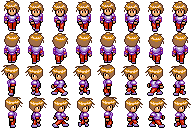
Why Texture Bleeding Happens
When your engine draws one frame from a sprite sheet, it does not copy pixels. It tells the GPU: "sample the texture from UV coordinate (0.25, 0.0) to (0.33, 0.125)." Those are floating-point coordinates between 0 and 1, not whole pixels.
Two things then conspire against you:
- Floating-point rounding. The math that converts a frame rectangle into UV coordinates rarely lands on an exact pixel boundary. A coordinate that should be 0.250000 ends up 0.249997. The GPU rounds, and sometimes it rounds into the adjacent frame.
- Bilinear filtering. If your texture uses linear filtering (the default in most engines), the GPU blends each output pixel from the four nearest source texels. At the edge of a frame, two of those four texels belong to the neighbor. The neighbor's color bleeds across the seam.
Put those together and the boundary between two tightly packed frames becomes a coin flip. Some frames look clean; some show a one-pixel halo of whatever sat next to them on the sheet. The tighter you pack, the worse it gets.
Why it looks fine in your editor: Image editors display textures at integer scale with point sampling — one source pixel maps to one (or N) screen pixels, no blending across frame boundaries. Game engines sample with sub-pixel UVs and filtering. That is the entire reason the bug only appears at runtime.
Fix One: Padding (The Gutter)
The first and most important fix is padding — also called a gutter or border. Leave empty transparent space between every frame on the sheet, typically 2 pixels.
Now when the GPU's rounding or filtering reaches past a frame's edge, it grabs transparent pixels instead of the neighbor's art. A transparent halo is invisible. Problem hidden.
How much padding?
- 1 px — enough for point/nearest sampling with no mipmaps. Risky if anything scales.
- 2 px — the safe default for bilinear filtering without mipmaps. Use this unless you have a reason not to.
- 2 px per mip level — if you generate mipmaps, each level halves resolution and doubles how far a sample can reach. Sheets that scale far down need more gutter.
Fix Two: Edge Extrusion (Bleeding On Purpose)
Padding solves bleeding into a frame. But it creates a subtler problem at the frame's own outer edge: when filtering blends your sprite's border pixel with the adjacent transparent gutter, the color gets diluted toward transparent. The result is a faint dark or pale fringe around the sprite itself.
The fix is extrusion (sometimes called bleed): copy each frame's edge pixels outward into the gutter by one or two pixels. Now when filtering blends across the boundary, it blends your sprite's color with more of the same color instead of with transparency. The fringe disappears.
So the ideal gutter is not empty — it is filled with a duplicate of the nearest edge pixel:
[ frame pixels ][ extruded copy of edge ][ transparent padding ][ next frame ]
Most packing tools call this "extrude" and let you set it independently of padding. Use both: extrude 1-2 px, then pad 1-2 px on top.
Fix Three: Power-of-Two Dimensions
A texture whose width and height are both powers of two — 256, 512, 1024, 2048 — is called a POT texture. Non-power-of-two (NPOT) is 640×480, 300×300, anything else.
Why it still matters in 2026:
- Mipmaps require it on many targets. Mipmaps are precomputed half-size copies the GPU uses when a texture is drawn small. The chain only works cleanly when each level halves to a whole number, which POT guarantees.
- Memory alignment. GPUs allocate and address POT textures more efficiently. A 513×513 texture often gets silently rounded up to 1024×1024 in VRAM anyway — you pay for the big size and use a quarter of it.
- Older mobile and WebGL targets flatly reject NPOT textures with mipmaps or repeat wrapping.
You do not have to make every frame power-of-two — just the final sheet. Pack your frames, then size the canvas up to the next POT and leave the remainder transparent.
The trade-off: POT canvases waste space. A sheet that needs 1100×900 jumps to 2048×1024 — more than double the pixels, most of them empty. On modern desktop and recent mobile you can usually ship NPOT safely if you disable mipmaps and use clamp wrapping. Target POT when you support old hardware or need mipmaps; allow NPOT when you control the platform.
Fix Four: Trimming (Buying the Space Back)
Padding and POT both add wasted space. Trimming claws it back.
Most sprites are mostly empty — a 64×64 frame holding a 30×40 character is more than half air. Trimming crops each frame down to its tight bounding box before packing, then records the offset so the engine can re-center it at draw time.
The payoff compounds: trimmed frames pack tighter, a tighter pack needs a smaller canvas, and a smaller canvas is more likely to fit under the next power-of-two threshold. It is common to drop a 2048×2048 sheet to 1024×1024 — a 4× memory saving — purely by trimming whitespace.
The cost is that your engine must support trimmed atlases (read the per-frame offset and pivot). Godot's AtlasTexture, Unity's sprite atlas, and every JSON-based packer format carry this data. If your engine reads the metadata, always trim.
Putting It Together: A Packing Checklist
A production-ready sprite sheet, in order of operations:
- Trim every frame to its bounding box, recording offsets.
- Pack trimmed frames, leaving a 2 px gutter between each.
- Extrude edge pixels 1-2 px into the gutter.
- Size the final canvas up to the next power-of-two (if targeting mipmaps or old hardware).
- Export the PNG alongside a metadata file (JSON, XML, or your engine's native atlas format) carrying frame rects, trim offsets, and pivots.
Skip any one of these and a specific artifact shows up: skip padding and you get bleed-in, skip extrusion and you get edge fringe, skip POT and you get rejected textures or wasted VRAM, skip trimming and you waste memory and pack passes.
Pack a clean sprite sheet without the artifacts.
Drop in your frames and the generator handles layout, padding, and a tight grid for you — then exports a ready-to-import PNG plus metadata. No bleeding, no guesswork.
One Last Sanity Check
If you ship a sheet and still see seams, the culprit is almost always one of two settings on the engine side, not the sheet:
- Filtering mode. For pixel art you usually want point/nearest filtering, not bilinear. That alone removes most bleeding because there is no blending across the seam.
- Texture compression. Block compression formats (DXT, ETC, ASTC) compress in 4×4 blocks and can smear color across frame boundaries that do not align to the block grid. Disable compression for pixel art sheets, or align frames to 4-pixel boundaries.
Get the packing right and the import settings right, and the line stops flickering for good.