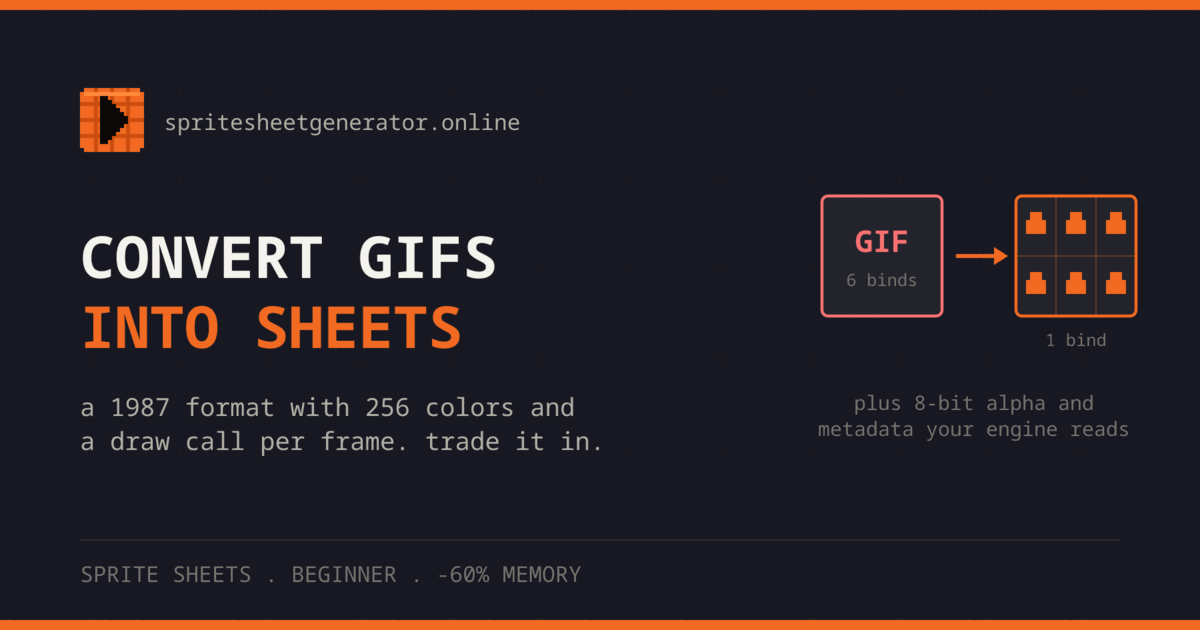
GIF limits each frame to 256 colors and on-or-off transparency, and game engines generally do not play animated GIFs at all. A PNG sprite sheet holds the same frames with full alpha, loads as one texture, and comes with metadata engines read. To convert, drop the GIF in the editor, check the frame count, set the frame rate yourself (per-frame GIF delays are not carried over), and export the PNG plus your engine's atlas file. Keep GIFs for devlogs and store pages.
What GIF Was Built For
CompuServe released GIF in 1987, and the format still carries that era's limits: every frame is an index into a palette of at most 256 colors, and transparency means marking one palette entry as see-through. A pixel is either fully visible or fully invisible.
People keep making GIFs because every pixel art tool exports them and every browser, chat app and social site plays them. That is a good reason to post one. It is not a reason to ship one inside a game.
Why GIFs Are a Poor Fit for Games
256 Colors Per Frame
For most pixel art, 256 colors is plenty. Gradients, soft shadows, glows and particle effects run out quickly. Encoders work around the limit with dithering, scattering pixels of two colors to suggest a third. Up close it looks grainy, and it also hurts compression, because GIF's LZW encoder depends on runs of identical pixels and dithering breaks them up.
On-or-Off Transparency
PNG stores an 8-bit alpha channel: 256 levels of opacity per pixel, which is what anti-aliased edges, soft shadows and glows need. GIF has a single transparent color.
So when a soft edge is saved as GIF, the half-transparent pixels get flattened onto whatever background the artist used. The result is a hard fringe in that background color around the sprite. On the original background you do not notice it. Put the sprite on a different background and the halo shows.
Engines Do Not Play Them
Godot, Unity and Phaser all load PNG sprite sheets with an atlas file. None of them plays an animated GIF as an animation out of the box. To use one you either decode it at runtime with extra code on every player's device, or you decode it once ahead of time into frames the engine already understands. Converting to a sprite sheet is the second option.
One Texture Per Frame
Even if you decode a GIF yourself, each frame becomes its own texture. When sprites use different textures, the renderer has to switch textures between them, and switching breaks batching: sprites that could have gone to the GPU in a single draw call now need several. Put all frames on one sheet and every sprite using that animation shares one texture.
How much that saves depends on how many animated sprites you draw at once. With one character on screen it hardly matters. With fifty enemies it can. Measure it in your own project.
GIF vs PNG Sprite Sheet
| Property | Animated GIF | PNG sprite sheet |
|---|---|---|
| Colors | 256 per frame | 16.7 million (24-bit) plus alpha |
| Transparency | One color, on or off | 8-bit alpha (256 levels) |
| Frame timing | Stored per frame in file | Set in the engine or atlas metadata |
| Atlas metadata (JSON/XML) | No | Yes |
| Several animations, one image | No | Yes |
| Compression | Lossless (LZW) on palette | Lossless (Deflate) |
| Engine support | Rarely without extra code | Standard |
| Textures per animation | One per frame once decoded | One |
Converting a GIF in the Editor
Step 1: Collect and Name Your GIFs
Gather the animations you want to use and name them after what they are: player_idle.gif, player_walk.gif, fireball.gif. Those names end up in your file system and your engine, so it pays to settle them now.
Step 2: Import
Drop a GIF onto the editor. The importer opens in GIF frames mode and decodes every frame, so you can look at what it found before anything lands on the canvas. You can also switch to another mode and use the GIF as a single image.
Decoding uses the browser's ImageDecoder API (part of WebCodecs). Each frame comes back fully composited, so a GIF that only stores the changed region of each frame still gives you complete frames. If your browser does not support ImageDecoder, the importer finds no frames; try a current Chromium-based browser in that case.
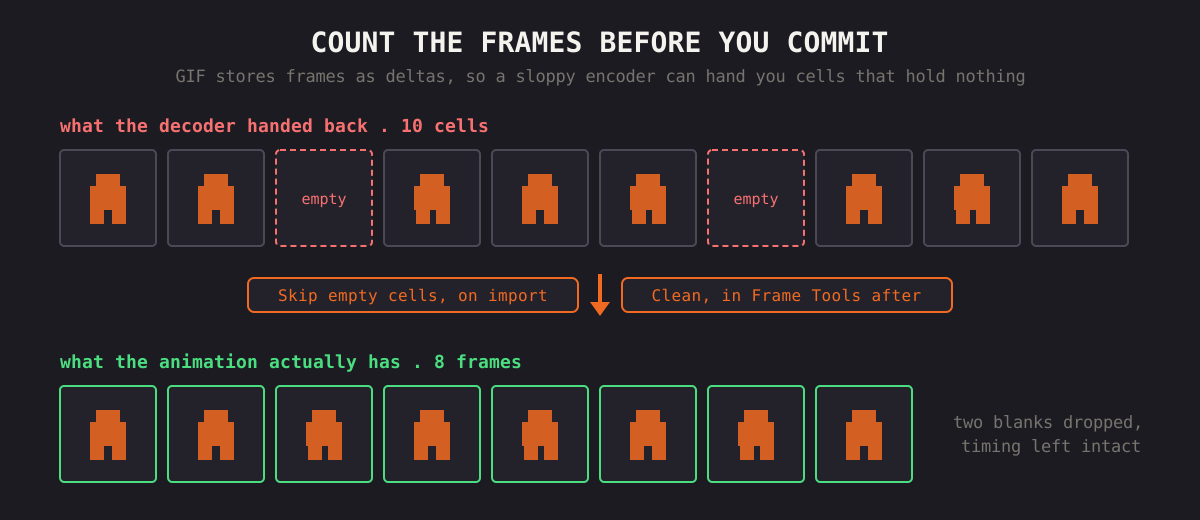
Count the frames. Some encoders write blank or duplicated frames, for example a leading empty frame or a repeated last frame used as a pause. After import, Clean in the Frame Tools panel removes empty frames. Duplicates you remove by hand, unless they are there on purpose to hold a pose.
Converting palette colors to a truecolor PNG is lossless, so every pixel keeps its exact color. A dithered GIF brings its dither pattern along; the PNG just gives you room to clean it up.
Step 3: Set the Timing
The importer takes the frames but not the GIF's per-frame delays. Open the Preview tab and set Speed (FPS) until the animation looks right, then use that number in your engine. If the original held some frames longer than others, see the section on variable timing below.
Step 4: Lay Out and Export
Set Columns (all frames in one row is fine for short animations; wrap longer ones into several rows), add Padding if your engine filters textures, and export PNG. Then use Format to write the atlas file your engine reads: Phaser / PixiJS JSON, a Godot SpriteFrames resource, Aseprite JSON, Sparrow XML, or a Tiled tileset. The engine import guide covers what to do with each one.
Step 5: Add Back the Alpha (Optional)
The frames are now PNG, so they can hold real transparency. A hard-edged GIF silhouette stays hard-edged, but you can open the sheet in Aseprite or another editor and add soft shadows, glows or anti-aliased edges that GIF could not store. It is a cheap upgrade for old animations because nothing has to be re-animated.
When to Keep the GIF
GIF is still the right choice when the animation is going somewhere people look at it, not into a build:
- Store pages, social posts and devlogs
- Bug reports and tutorials
- Chat apps like Discord and Slack, where GIFs autoplay inline
Anything that ships inside the game should be a sprite sheet. That includes UI animations and effects, not just characters.
Is the PNG Smaller?
It depends, and either outcome is common.
GIF compresses each frame separately with LZW, but it can store just the rectangle that changed since the previous frame. For an animation where only a small part moves, that is very efficient. PNG compresses the whole sheet as one image with row filtering and Deflate. It stores every frame in full, but it can reuse byte sequences it has seen recently, and it has no palette limit forcing dithering. Dithered GIFs tend to compress badly.
The only reliable answer is to export the same frames both ways and compare file sizes for your art.
For the web, the WebP button in the Export panel writes the same sheet as WebP, which is often smaller than PNG. Godot imports WebP; Unity does not out of the box, so check your engine first.
Going the Other Way
For a devlog post or an itch.io page you may want a GIF back. The GIF export renders the current frames as a looping GIF and asks for a frame rate first.
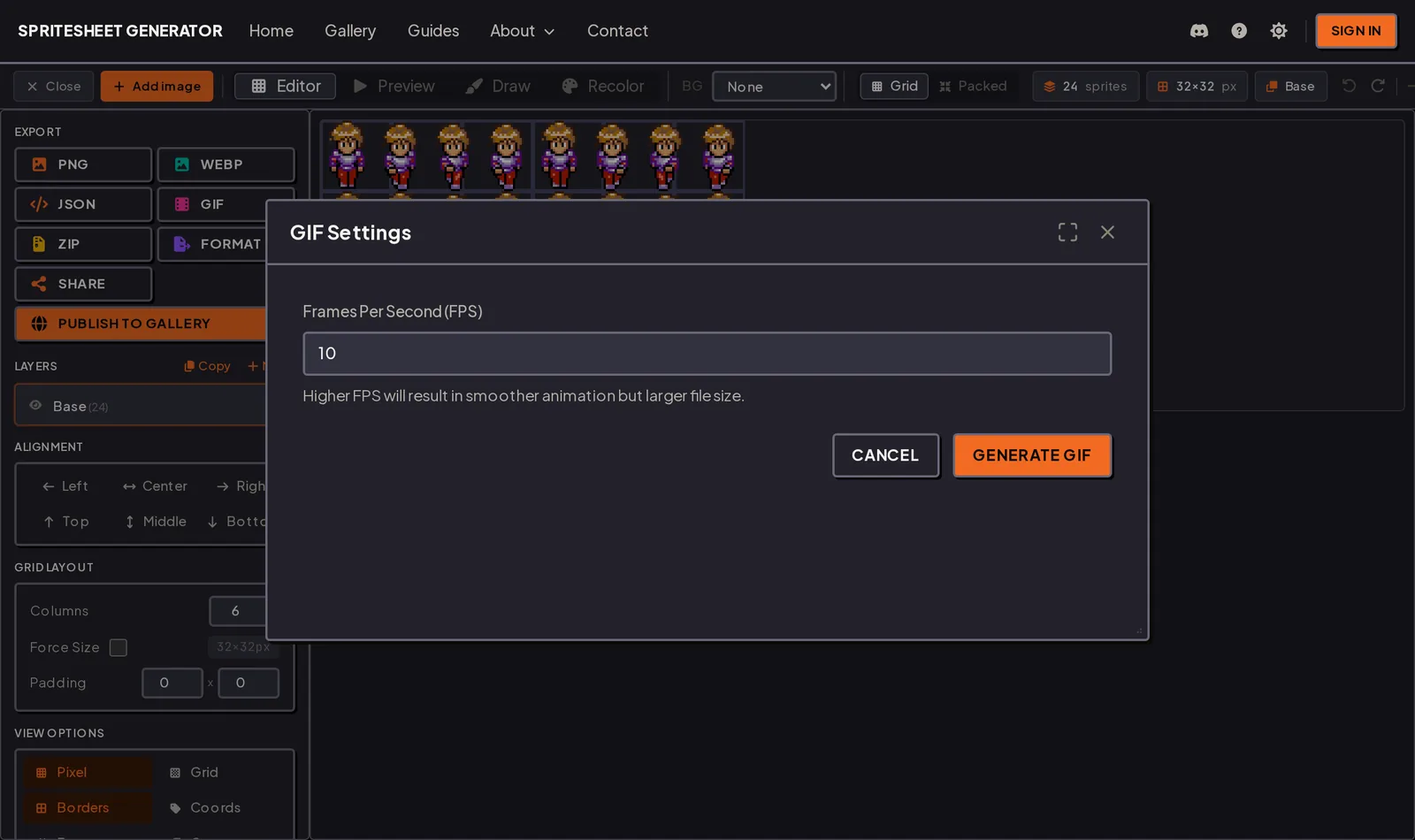
Choose the rate on purpose: a GIF stores its timing in the file, so changing it later means exporting again. GIF delays are also stored in hundredths of a second, so not every frame rate fits exactly, and most browsers slow down frames with a delay under 0.02 seconds. Rates up to about 50 fps play as expected.
Things to Check
Variable Frame Timing
A GIF can give each frame its own duration, for instance 100 ms per frame in a walk cycle with 150 ms on the contact poses. The editor imports all frames at one rate. To keep the rhythm, duplicate the long frames on the sheet (a 150 ms frame in a 50 ms animation becomes three copies), or set per-frame durations in your engine if it supports them. Godot's SpriteFrames stores a relative duration per frame; Phaser animation frames accept a duration.
Backgrounds That Were Not Transparent
If whoever saved the GIF did not mark the background color as transparent, every frame comes in with a solid rectangle behind the sprite. You have to remove that color after converting, either in an image editor or with a color-removal tool.
Loop Points
GIF stores a loop count for the whole file, and players do not all honor it the same way. There is no way to say "play frames 1 to 3 once, then loop 4 to 8". On a sprite sheet the engine decides: split the intro and the loop into two animations, or use ping-pong or play-once where your engine offers them.
Drop in a GIF, check the frames, export the sheet and its atlas file.
Screenshots taken in the Spritesheet Generator editor. Format details follow the GIF specification and Adobe's GIF optimization documentation.
Try it in the editor
The editor is free and needs no account. Open it in another tab and work through the steps above with your own frames.