The seams and colored fringes that appear around sprites in a game, but not in your art tool, are texture bleeding: the GPU reads a pixel or two past the edge of a frame and picks up whatever sits next to it on the sheet. A transparent gutter between frames stops neighbors leaking in, and extruding edge pixels into that gutter stops the sprite's own edge fading. Power-of-two sheet sizes matter if you use mipmaps or target old hardware, and trimming wins back the space all of this costs. For pixel art, nearest filtering on the engine side removes most of the problem by itself.
Where the Flickering Line Comes From
You pack twelve 32x32 frames of a walk cycle into one sheet, load it in your engine, and press play. Along the right edge of the character a faint one-pixel line flickers, and it is the color of the frame next to it.
The source PNG is fine when you zoom in. The line comes from how the GPU reads the sheet, so the fix is in how the sheet is packed and imported, not in the art.
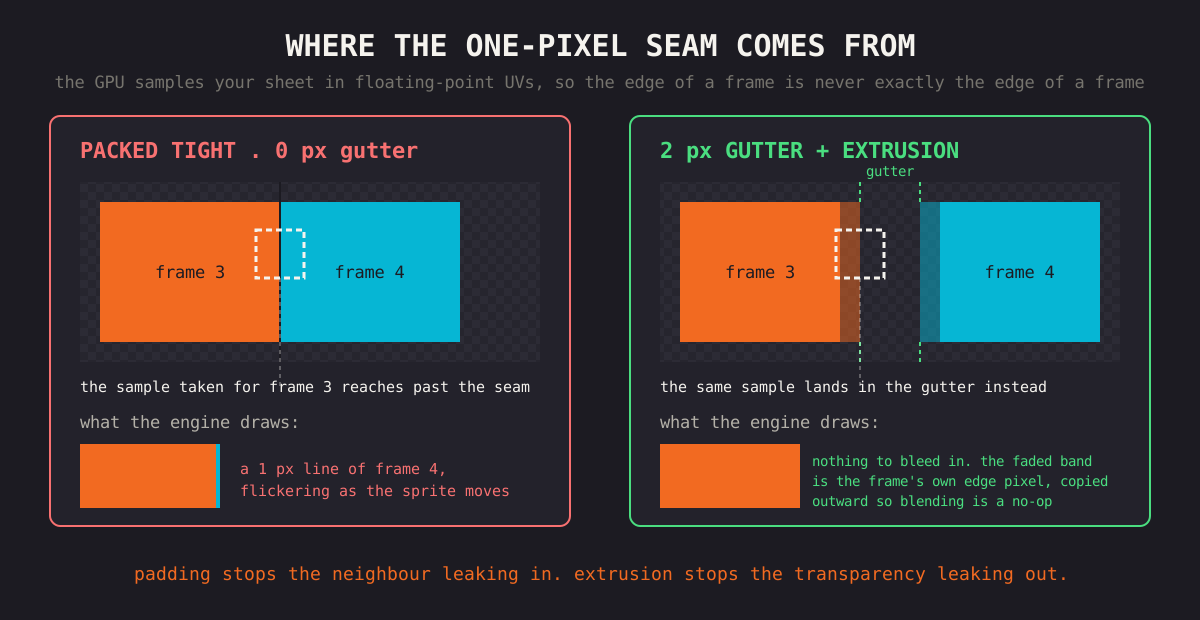
Why Texture Bleeding Happens
An engine does not copy a frame's pixels to the screen. It asks the GPU to sample a rectangle of the texture using UV coordinates, which are floating-point values from 0 to 1 rather than whole pixel positions.
Two effects push those samples over the edge:
- Rounding. Converting a frame rectangle into UVs, then scaling and positioning it on screen, rarely lands exactly on a pixel boundary. A coordinate meant to be 0.25 can come out a hair under, and the sample falls into the adjacent frame.
- Bilinear filtering. With linear filtering, which many engines use by default, each screen pixel is a blend of the four nearest texels. At a frame's edge, some of those four belong to the neighbor, and its color gets mixed in.
The tighter the frames are packed, the more often this shows. Some frames look clean and others get a one-pixel halo of whatever was next to them.
Why your editor shows no problem: image editors usually draw at whole-number zoom with nearest-neighbor sampling, so each texel maps to a block of screen pixels and nothing blends across a frame boundary. Engines sample with sub-pixel coordinates and often with filtering turned on. That difference is why the bug only appears at runtime.
Padding: Leave a Gutter
The main fix is a transparent gap between frames, often called padding, gutter, spacing or border depending on the tool. When rounding or filtering reaches past a frame's edge, it now picks up transparent pixels instead of the neighbor's art, and a transparent fringe is invisible.
How wide the gap needs to be depends on how the texture is sampled:
- Nearest filtering, no scaling tricks: 1 px between frames is usually enough.
- Bilinear filtering, no mipmaps: 2 px is the common default.
- Mipmaps: more. Each mip level halves the resolution, so a 2 px gap on the full-size texture is 1 px on the next level and gone on the one after. Pad for the smallest level you expect to be drawn.
In this editor, Padding in the Grid Layout panel takes a horizontal and a vertical value in pixels per side of each cell. Two neighboring frames therefore end up twice the padding apart: 1 px per side gives a 2 px gap. The cell size in the top bar updates as you change it.
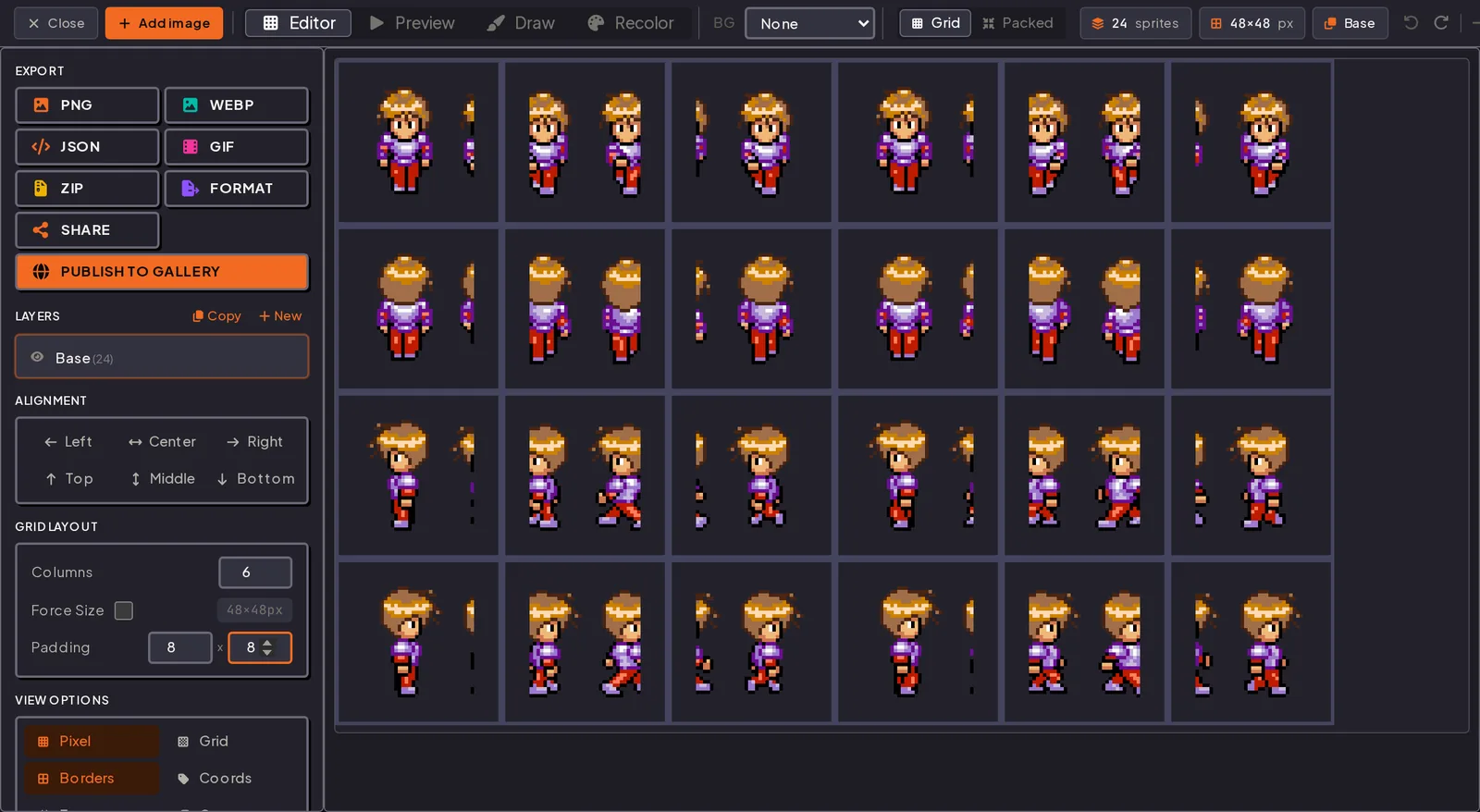
Set padding before you export metadata. It changes the cell size, which changes every frame rectangle in the atlas file. Re-exporting takes a click; re-slicing by hand in the engine does not.
Because the padding sits inside each cell, the exported sheet is still a plain grid with no spacing between cells. When you slice it by hand in an engine, the frame size is the full cell (48x48 in the screenshot) and the spacing or separation value is 0.
Edge Extrusion: Bleed on Purpose
A gutter stops the neighbor leaking in, but it creates a smaller problem at the frame's own edge. Filtering now blends the sprite's outermost pixels with the transparent gutter, so the edge thins out toward transparent and can pick up a pale or dark fringe.
Extrusion fixes that by copying each frame's edge pixels outward into the gutter by a pixel or two. A sample that crosses the edge now blends the sprite's color with more of the same color.
[ frame pixels ][ extruded copy of edge ][ transparent padding ][ next frame ]
Packers such as TexturePacker have an Extrude setting separate from padding; 1 px of extrusion plus 1 to 2 px of padding is a common combination. This editor does not extrude. If you need it, extrude in your packer or art tool, or sidestep it with nearest filtering (see the last section).
Power-of-Two Sheet Sizes
A texture whose width and height are both powers of two (256, 512, 1024, 2048) is a POT texture. Anything else, like 640x480 or 300x300, is NPOT.
Reasons it can still matter:
- WebGL 1 and OpenGL ES 2.0 only allow mipmaps and repeat wrapping on POT textures. An NPOT texture with either setting renders incorrectly or not at all. WebGL 2 and current desktop and mobile APIs lift that restriction.
- Mipmap chains halve cleanly at every level when the base size is a power of two.
- Some texture compression formats and older platforms expect POT sizes. Check your target's documentation.
Only the sheet needs to be POT, not the frames inside it. Pack the frames, then grow the canvas to the next power of two and leave the rest transparent.
The trade-off: POT wastes space. A sheet that needs 1100x900 becomes 2048x1024, roughly twice the pixels, most of them empty. If you control the platform and do not need mipmaps or repeat wrapping, NPOT is usually fine. Target POT for mipmaps, WebGL 1, or old mobile hardware.
Trimming: Win the Space Back
Padding and POT both add empty space. Trimming takes some back.
Most frames contain a lot of air: a 64x64 cell holding a 30x40 character is more than half empty. Trimming crops each frame to the bounding box of its visible pixels before packing and records the offset, so the engine can put the sprite back in the right place when it draws it.
Trimmed frames pack tighter, and a tighter pack can drop under the next power-of-two size. Going from 2048x2048 to 1024x1024 is a quarter of the memory.
Your engine has to read those offsets for this to work. In TexturePacker-style JSON they live in spriteSourceSize and sourceSize; Sparrow XML uses frameX, frameY, frameWidth and frameHeight. With Trim Transparent on, the Phaser / PixiJS, Aseprite and Sparrow XML exports in this editor write those fields.
Switch the top bar from Grid to Packed and the editor runs MaxRects bin packing on the same sprites. It keeps a 1 px border around each sprite (2 px between neighbors), picks the smallest power-of-two canvas that fits, and shows that size along with how much of it is filled.
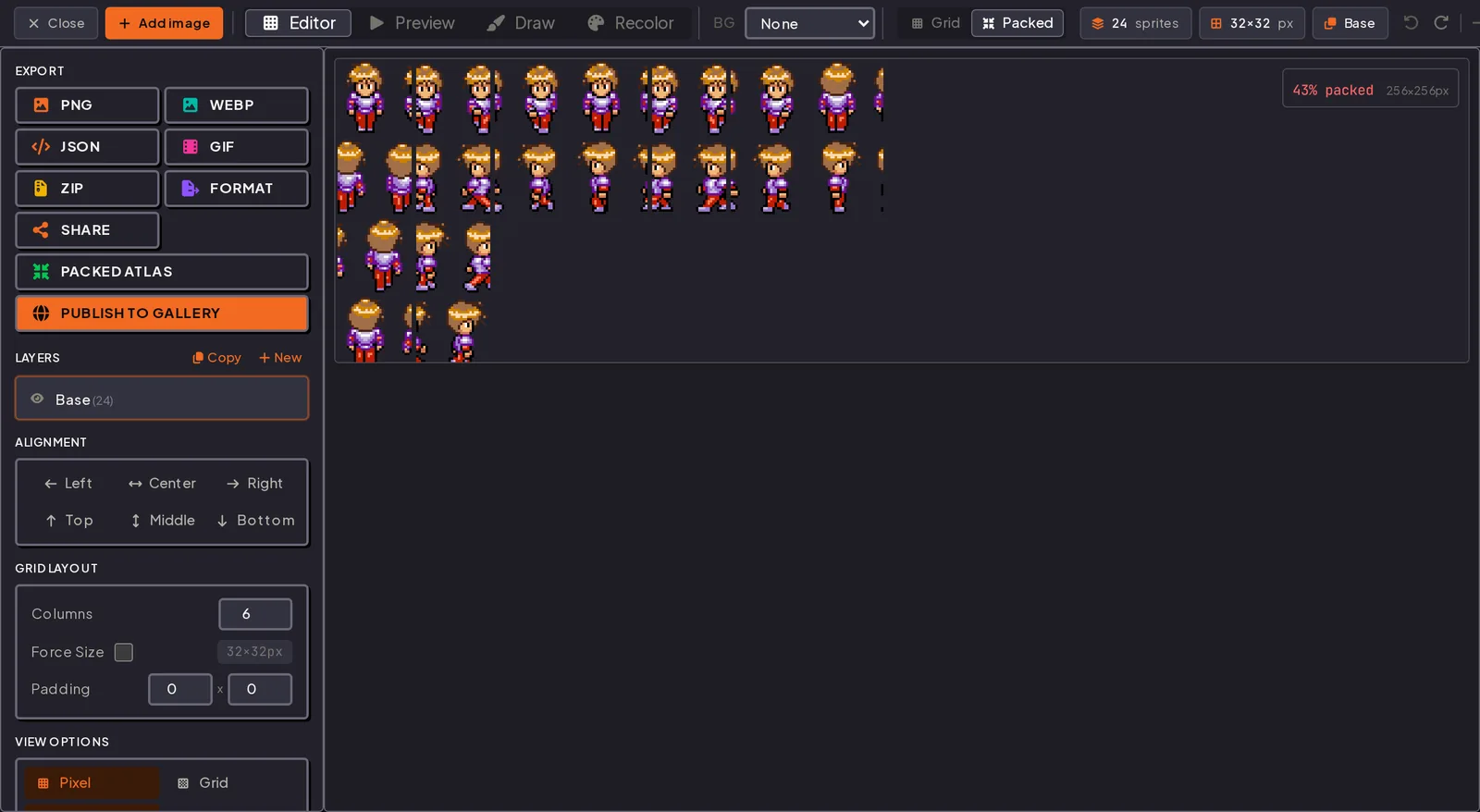
A low fill percentage usually means untrimmed frames or a canvas that just crossed a power-of-two boundary. It is a hint about your input, not proof that the packer did badly.
The Order of Operations
- Trim each frame to its visible pixels and keep the offsets.
- Pack the trimmed frames with a gutter between them.
- Extrude edge pixels into the gutter if you use linear filtering.
- Size the canvas up to a power of two if you need mipmaps or support old hardware.
- Export the PNG with a metadata file that carries frame rectangles and trim offsets.
Each step prevents a specific artifact. Without padding, neighbors bleed in. Without extrusion, edges fringe under filtering. Without POT on platforms that need it, textures fail or mipmaps break. Without trimming, you spend memory on transparent pixels.
Set padding, check the cell size, export the sheet with its atlas file.
Still Seeing Seams?
If the sheet is padded and the lines are still there, look at two engine settings before repacking:
- Filtering mode. Pixel art normally wants point or nearest filtering. With no blending across texels, most bleeding disappears even on a tightly packed sheet.
- Texture compression. Block formats compress in fixed blocks (4x4 texels for DXT/BC and ETC; ASTC lets you choose the block size) and can smear color across frame edges that do not line up with the block grid. Turn compression off for pixel art sheets, or align frames to the block size.
Try it in the editor
The editor is free and needs no account. Open it in another tab and work through the steps above with your own frames.