Pixel art blurs because the default scaling filter, bilinear, blends neighboring pixels to smooth the upscale, which is wrong for art made of deliberate hard edges. Switch to nearest-neighbor sampling and the edges stay sharp. Then scale only by whole-number multiples (2x, 3x, 4x) so every source pixel maps to an equal block of screen pixels. Filter plus integer scale equals pixel-perfect, everywhere from CSS to your game engine.
Same Art, Two Completely Different Results
You finish a 32x32 sprite. In your editor, zoomed to 800%, it is crisp, every pixel a clean square. You put it on your website at a larger size, or load it into a game, and it turns into a soft, smeared mess. The colors are right. The shape is right. The sharpness is gone.
You did not draw it wrong. The display is scaling it wrong, and the fix is two settings that almost every tool ships backwards for pixel art.
What Scaling Actually Does
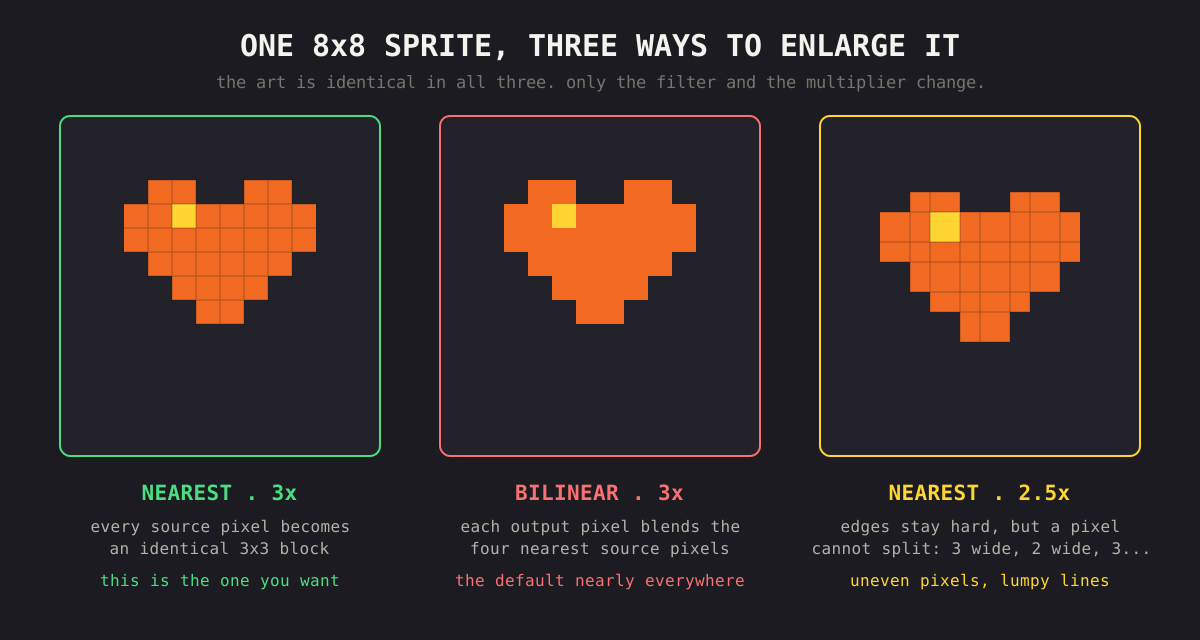
When a 32x32 image is shown at 128x128, the computer has to invent the missing pixels: it has 1,024 source pixels and needs to fill 16,384 screen pixels. How it invents them is the whole game.
There are two common methods:
- Bilinear filtering. For each new pixel, it samples the four nearest source pixels and blends them by distance. This produces smooth gradients between colors, which is right for photographs, where smooth is what realistic looks like. On pixel art it smears every hard edge into a gradient. This is the default in browsers, engines, and image viewers.
- Nearest-neighbor. For each new pixel, it picks the single closest source pixel and copies it, no blending. Hard edges stay hard. Each source pixel becomes a clean block. This is what pixel art needs and almost never gets by default.
The entire "my pixel art is blurry" problem is this: you are getting bilinear when you want nearest-neighbor.
Why is the wrong one the default? Because most images on screen are photos, screenshots, and UI gradients, where bilinear genuinely looks better. Pixel art is the exception that wants the un-smoothed path, and you have to ask for it explicitly almost everywhere.
Force Nearest-Neighbor Sampling
The setting has a different name in every context, but it is always the same switch.
CSS / web:
.pixel-art {
  image-rendering: pixelated; /* Chrome, Edge, Safari */
  image-rendering: crisp-edges; /* Firefox fallback */
}
Apply it to any <img>, <canvas>, or background that holds pixel art you are scaling up.
HTML canvas (drawImage):
ctx.imageSmoothingEnabled = false; // must be set after every context resize
Game engines: Godot calls it Texture Filter -> Nearest, Unity Filter Mode -> Point, Phaser pixelArt: true in the game config, and Construct Sampling -> Point.
That one flip removes the blur. On its own it does not make the result perfect, and the second half is why.
Scale by Whole Numbers Only
Turn off filtering but scale a 32px sprite to 50px, a 1.5625x multiplier, and a new problem appears. Some source pixels now cover 2 screen pixels and their neighbors cover only 1, because you cannot split a pixel. The result is uneven pixels: a sprite where some columns are visibly fatter than others. Straight lines look lumpy. This is sometimes called pixel shimmer or jitter.
The fix is integer scaling: only ever scale by a whole-number multiple, so 2x, 3x, 4x or 5x. At 3x every source pixel becomes an identical 3x3 block.
So a 32x32 sprite should be displayed at 64, 96, 128 or 160, never 100 or 150. Nearest-neighbor keeps the edges hard and integer scaling keeps every pixel the same size, and you need both.
The math: pick your target display size, divide by the source size, and round down to a whole number. Want a 32px sprite around 200px tall? 200 / 32 = 6.25, so use 6x = 192px. Slightly smaller than your target, but pixel-perfect. Always round down, never to a fraction.
Seeing the Difference Before You Ship
Both halves of the fix have a switch in the editor, so it is a cheap place to watch the failure mode instead of reading about it. Pixel in View Options is the nearest-neighbor toggle, and the zoom control steps in whole multiples so the canvas is always showing you an integer scale.
Toggle Pixel off at 300% zoom and the sprites go soft immediately. That is bilinear filtering, and it is the same blur your engine will apply by default until you change the setting for your build.
Getting it right in the editor does not fix it in your game. The filtering setting lives in the engine, not in the PNG. Export a perfect sheet into a project with linear filtering and it will still look blurry.
The Moving-Camera Catch
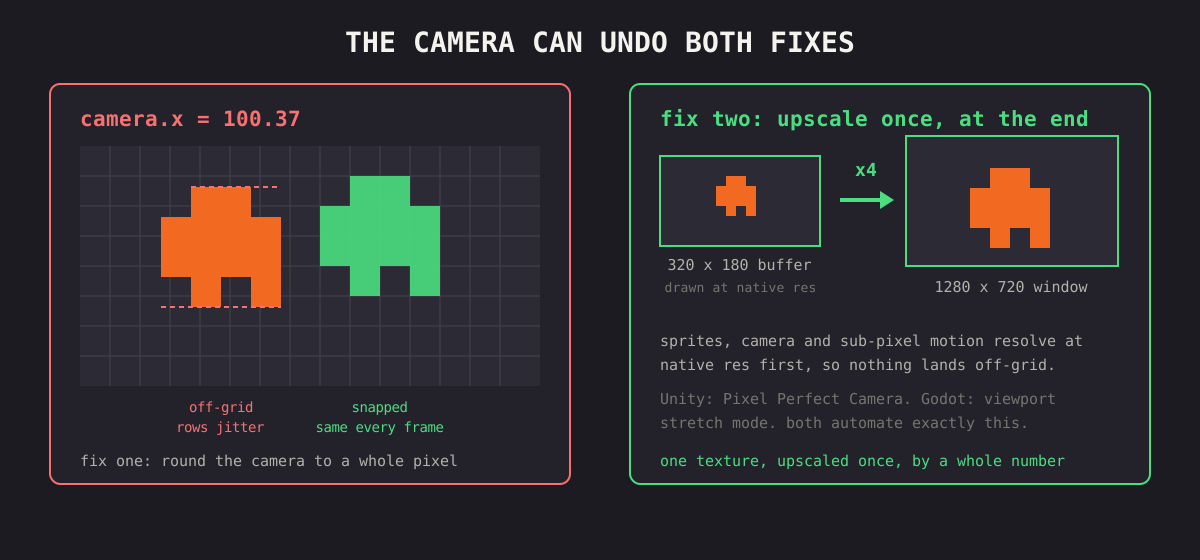
Static sprites are easy. The hard case is a scrolling game where the camera moves at fractional speeds. Even with nearest-neighbor and integer scaling, a camera positioned at x = 100.37 lands your sprites on fractional pixel boundaries, and they shimmer as they move, with pixels appearing to jiggle by a row.
Two fixes:
- Snap the camera to whole pixels. Round the camera position to an integer every frame before rendering. Cheap and effective.
- Render to a low-res buffer, then integer-scale the whole buffer. Draw the entire game at native pixel resolution (say 320x180) into an off-screen texture, then upscale that one texture by an integer factor to fill the window. Every sprite, the camera, and any sub-pixel motion all get resolved at native resolution first, so nothing can land off-grid. This is how most polished pixel-art games do it, and it is what Unity's Pixel Perfect Camera and Godot's viewport stretch mode automate for you.
When You Cannot Scale by Integers
Sometimes the window size is not a clean multiple of your game resolution: a 320x180 game on a 1366x768 laptop screen wants 4.27x. Your options, worst to best:
- Fractional scale with nearest-neighbor. Sharp but uneven pixels. Acceptable at high multipliers (the unevenness is one pixel out of five), bad at low ones.
- Integer scale plus letterboxing. Use the largest integer that fits (4x = 1280x720) and put black bars around the remainder. Perfect pixels, small borders. This is the standard choice.
- Integer-prescale, then a tiny bilinear finish. Upscale to the nearest integer with nearest-neighbor, then do the small remaining fractional step with bilinear. The blur is spread thin and the edges mostly survive. A reasonable compromise for fullscreen web.
For most projects integer scale plus letterboxing is the right default. Players accept thin borders far more readily than lumpy pixels.
Build sheets that stay crisp at every scale.
Lay out your frames at native resolution and export clean PNGs, then apply nearest-neighbor and integer scaling on your end for pixel-perfect results in any engine or browser.
Two Symptoms, Two Fixes
- Edges blurry? You have bilinear filtering. Switch to nearest-neighbor / point /
image-rendering: pixelated. - Pixels uneven or shimmering? You are scaling by a fraction. Scale by whole numbers only, snap the camera, and letterbox the remainder.
Do both and the sprite is as sharp on a 4K monitor as it was at 800% in your editor.
Try it in the editor
Everything in this guide runs in the browser. No install, no account, and your images never leave your device.