Stardew Valley mods run through SMAPI, a free mod loader you install once. Most mods you download are folders that go in Stardew Valley/Mods. To make your own art mod you need no code: a folder with a manifest.json, a content.json for Content Patcher, and your PNG files. Content Patcher swaps the game's images for yours when the game loads them, so you never touch the original files.
What You Need
Three things, all free:
- SMAPI, the mod loader. Nothing else works without it.
- Content Patcher, a SMAPI mod that lets you change game assets with a JSON file instead of C#.
- A text editor that shows JSON errors. VS Code is fine. Notepad is not, because one missing comma breaks the whole file and Notepad will not tell you where.
You also want a copy of the original sprites to look at. More on that below.
Install SMAPI
Download the latest release from smapi.io and unzip it somewhere outside the game folder. Inside you will find an installer script for each platform: install on Windows.bat, install on macOS.command and install on Linux.sh. Run the one for your system and pick Install when it asks.
The installer finds your game folder on its own in most cases. When it finishes, it tells you how to launch the game with SMAPI. On Steam that usually means a launch option it prints for you to paste in. Follow what it says for your setup rather than a tutorial from three versions ago, because the steps have changed over the years.
Start the game once. A console window opens next to it. That window is SMAPI, and it is where every error and warning shows up. Keep it visible while you mod.
Install Other People's Mods
Nexus Mods and ModDrop host most Stardew mods. A mod download is a zip with one folder inside. Unzip it into Stardew Valley/Mods so you end up with something like:
Stardew Valley/
  Mods/
    ContentPatcher/
    SomeNiceMod/
      manifest.json
Two habits save a lot of grief:
- Read the requirements on the mod page. Many mods are content packs for Content Patcher or another framework. If the framework is missing, the SMAPI console says so in red on startup.
- Add mods a few at a time. When something breaks after you added twenty, you are bisecting. After two, you know.
To remove a mod, delete its folder. Mods do not change your game files, so there is nothing else to undo. Your save might still mention items from a removed mod, which is why it is worth backing up %appdata%/StardewValley/Saves (or the equivalent on your system) before you try a big one.
How a Content Patcher Mod Works
The game loads every image by an asset name such as Characters/Abigail or Portraits/Abigail. Content Patcher sits in between. When the game asks for Characters/Abigail, Content Patcher applies your patches to it before the game sees it.
That gives you two main actions:
| Action | What it does | Use it when |
|---|---|---|
Load |
Replaces the whole asset with your file | You add something new, or nobody else should touch it |
EditImage |
Pastes your image over part or all of the original | You change existing art and want to play well with other mods |
Two mods cannot both Load the same asset. Many mods can EditImage it. For a retexture, EditImage is almost always the right pick.
Build Your First Mod
The example below replaces Abigail's overworld sprite. Swap in any NPC; the steps are the same.
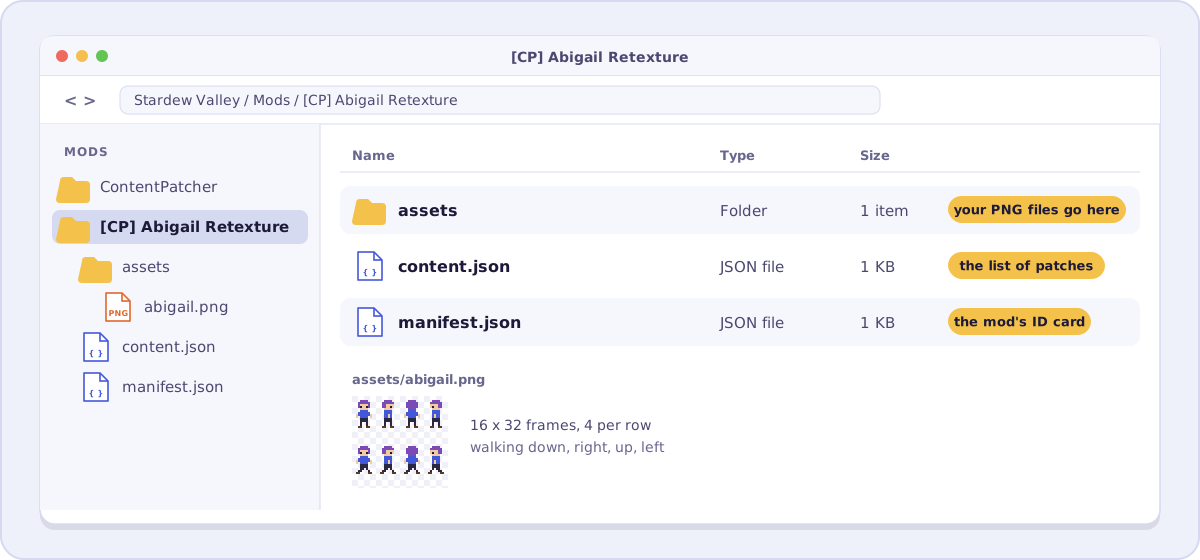
- Make the folder. In
Mods, create[CP] Abigail Retexture. The[CP]prefix is a convention that tells players this is a Content Patcher pack. - Add
manifest.json. This is the mod's ID card. - Add
content.json. This is the list of patches. - Add your art in an
assetssubfolder. - Start the game and watch the SMAPI console for your mod's name.
The manifest:
{
  "Name": "Abigail Retexture",
  "Author": "YourName",
  "Version": "1.0.0",
  "Description": "A new overworld sprite for Abigail.",
  "UniqueID": "YourName.AbigailRetexture",
  "UpdateKeys": [],
  "ContentPackFor": {
    "UniqueID": "Pathoschild.ContentPatcher"
  }
}
UniqueID has to be unique across every mod in existence, which is why it starts with your name. ContentPackFor tells SMAPI to hand this folder to Content Patcher.
The patch file:
{
  "Format": "2.0.0",
  "Changes": [
    {
      "Action": "EditImage",
      "Target": "Characters/Abigail",
      "FromFile": "assets/abigail.png"
    }
  ]
}
Format is the Content Patcher version your file is written for. Older values still work because Content Patcher migrates them, but when you start a new mod, use the current version from the Content Patcher author guide so you get the newest features.
The finished folder:
[CP] Abigail Retexture/
  manifest.json
  content.json
  assets/
    abigail.png
Get the Original Sprites
You will want the vanilla sheet next to yours, to match size and layout. The game stores its images as .xnb files. StardewXnbHack unpacks them: put it in the game folder, run it, and it writes a Content (unpacked) folder full of plain PNGs.
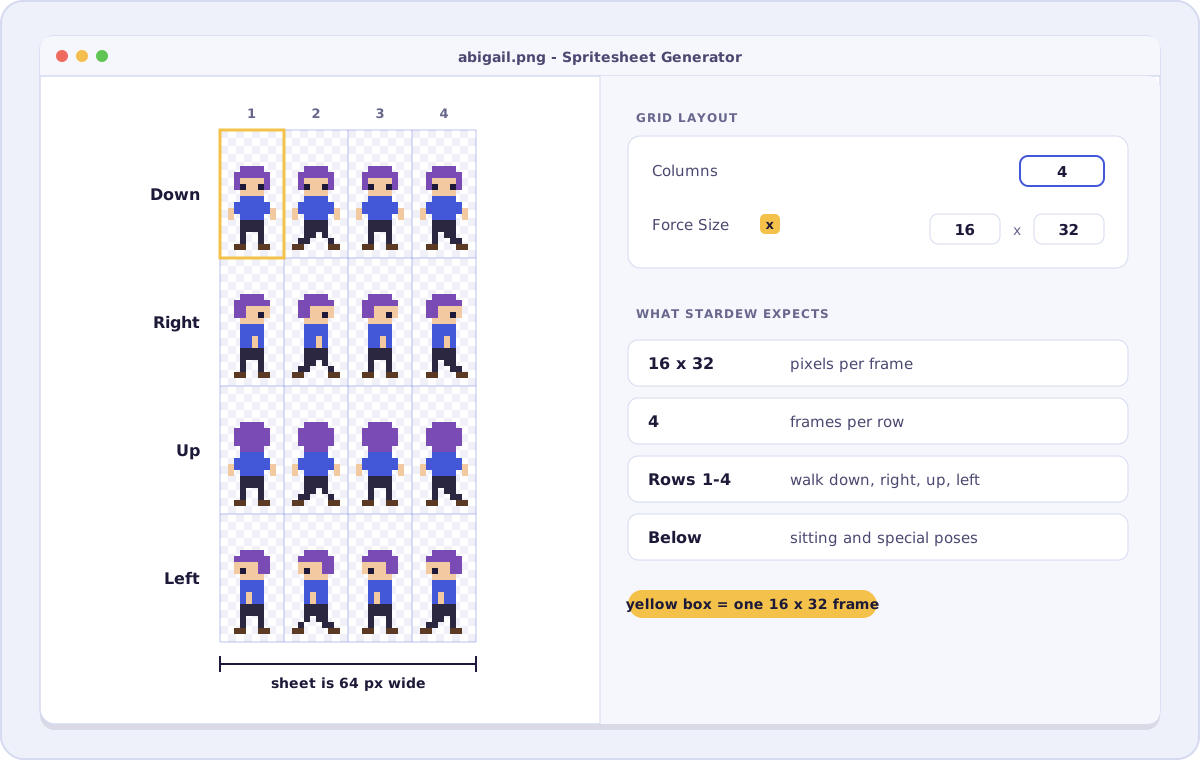
Open Characters/Abigail.png from there and you will see the layout you need to match. Every regular NPC uses the same one:
- Frames are 16x32 pixels.
- The sheet is 4 frames wide.
- The first four rows are walking down, right, up and left, in that order.
- Rows below that hold NPC-specific poses, like sitting or a special animation.
Portraits in Portraits/Abigail.png are 64x64 per expression, two per row. The order of expressions is fixed by the game's dialogue codes, so copy the order of the vanilla file exactly.
Draw your sheet at 1x, the same 16x32 cells as the original. The game scales everything up for the screen. If you paint at 4x and export at 4x, the sprite comes out four times too large.
Only Change Part of a Sheet
EditImage without coordinates pastes your whole image at the top left. With FromArea and ToArea you can paste one region. This patch replaces only the walking-down row:
{
  "Action": "EditImage",
  "Target": "Characters/Abigail",
  "FromFile": "assets/abigail-down.png",
  "ToArea": { "X": 0, "Y": 0, "Width": 64, "Height": 32 }
}
Smaller patches clash less with other mods. If someone else changed Abigail's sitting pose and you only touched her walk, both changes survive.
Add "PatchMode": "Overlay" when your image has transparent parts that should let the original show through. A hat on top of the existing sprite is the classic case.
Make It React to the Game
Content Patcher patches can carry conditions. This version only applies in winter:
{
  "Action": "EditImage",
  "Target": "Characters/Abigail",
  "FromFile": "assets/abigail-winter.png",
  "When": { "Season": "Winter" }
}
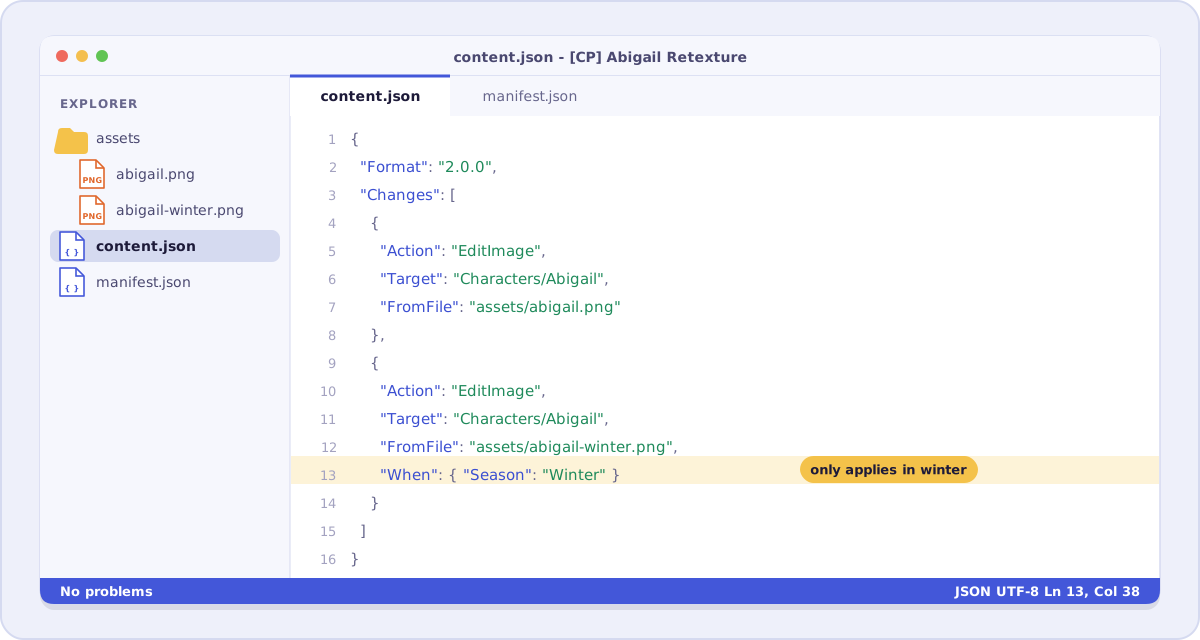
Season, weather, day of the week, friendship level and whether another mod is installed are all available as conditions. A winter coat that appears on its own is the kind of detail players notice and remember.
Test Without Restarting
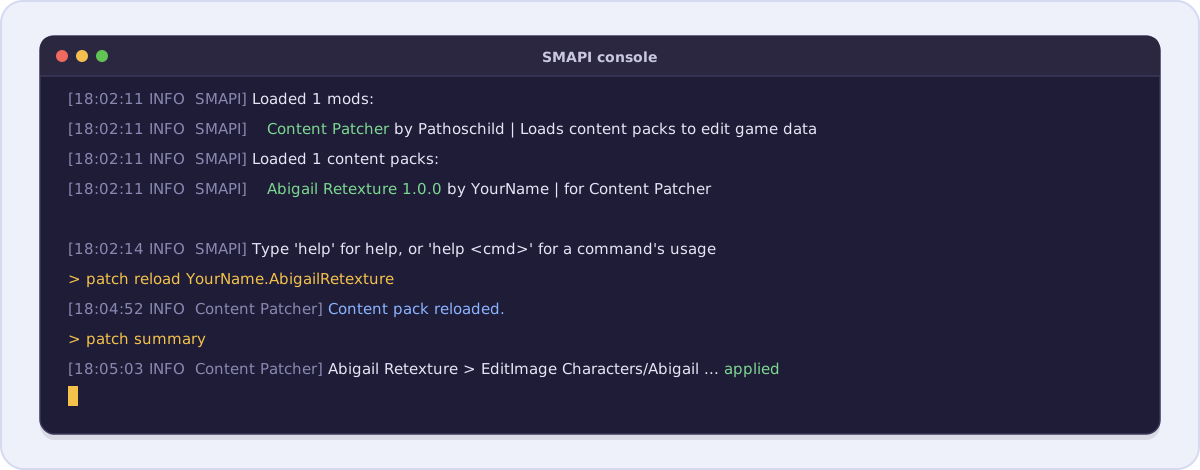
Restarting the game for every pixel tweak gets old fast. Content Patcher adds console commands to the SMAPI window:
patch reload YourName.AbigailRetexturere-reads your files while the game runs.patch summarylists every patch and whether it applied. When your sprite does not show up, this tells you why.
Where the Art Comes From
If you draw, the built-in pixel art editor works at 16x32 and exports a plain PNG. If you do not, the gallery has sheets other people published for anyone to reuse, and the Stardew Valley mod sprites page lists the ones that already fit the NPC grid.
Art ripped from other games is a different story. It is not yours to ship even when it looks perfect, and the licensing guide explains how to check where a sheet came from.
Share It
Zip the mod folder (the folder itself, not just its contents) and upload it to Nexus Mods or ModDrop. List Content Patcher as a requirement. Once the mod page exists, put its key in UpdateKeys, for example "Nexus:12345", and SMAPI will tell players when you release an update.
Draw or rearrange your NPC sheet in the browser. Open the editor
Try it in the editor
The editor is free and needs no account. Open it in another tab and work through the steps above with your own frames.